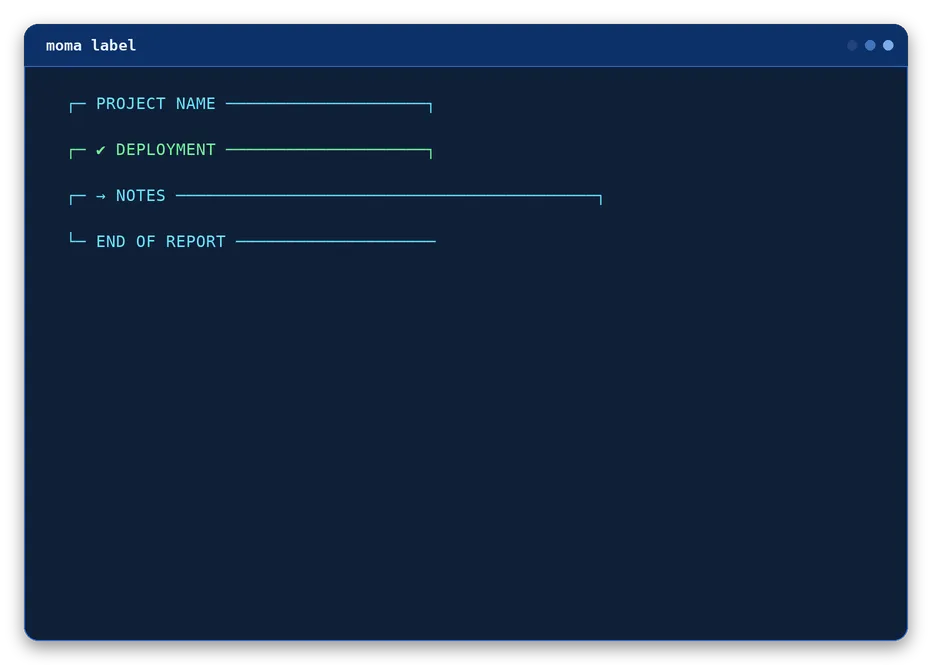
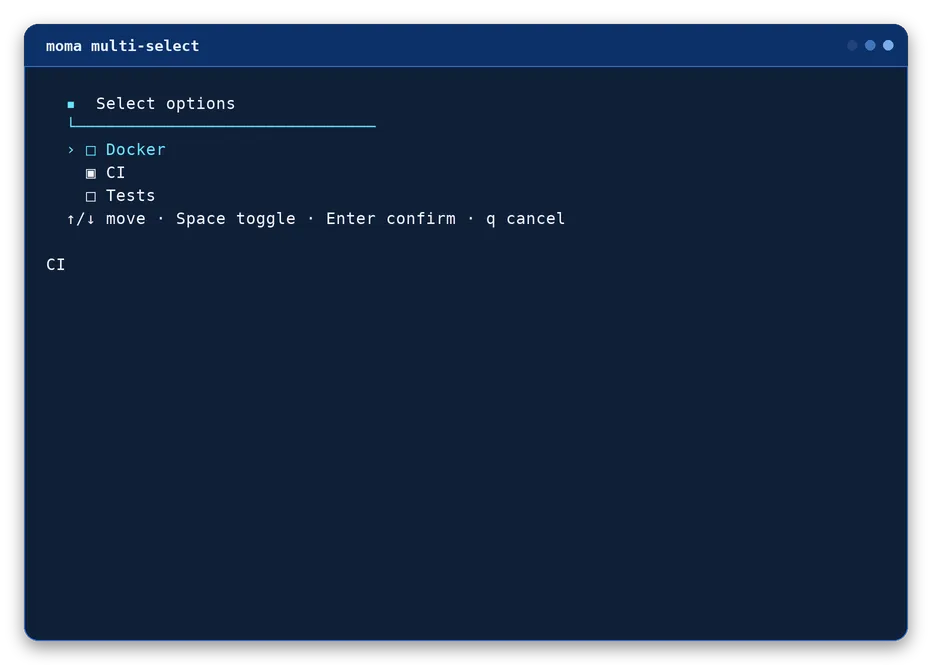
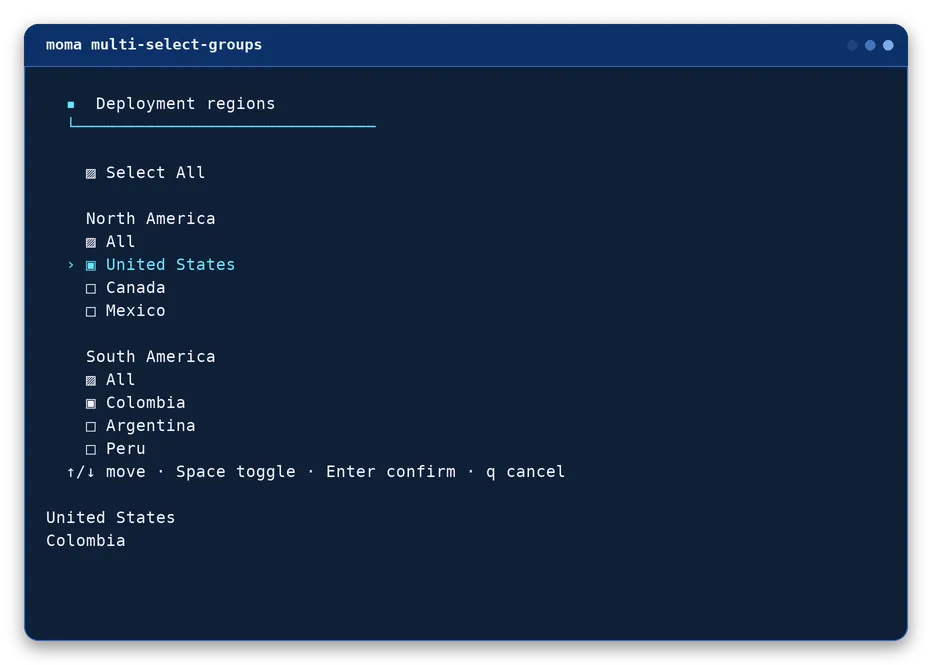
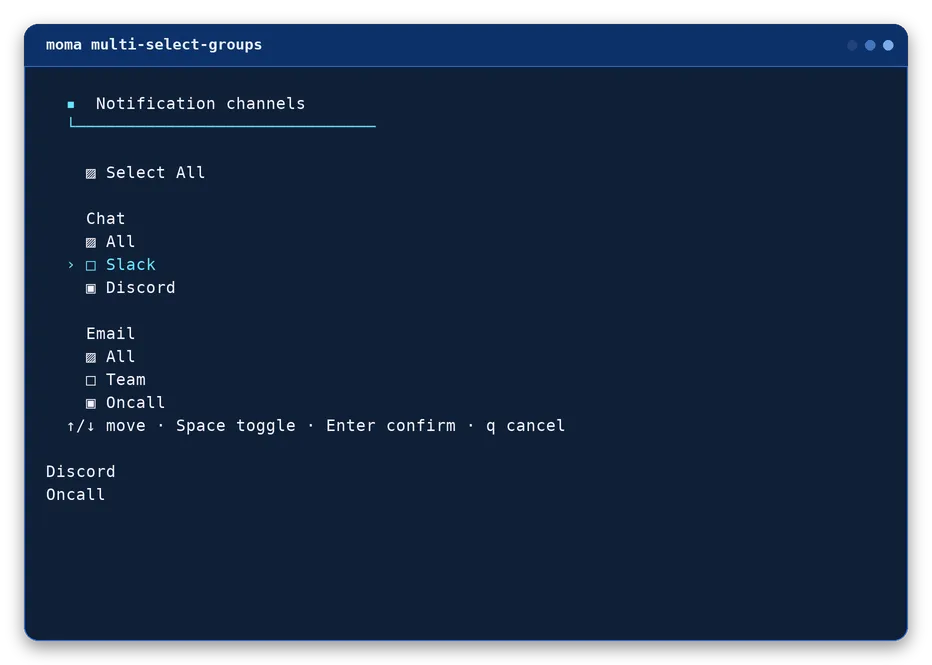
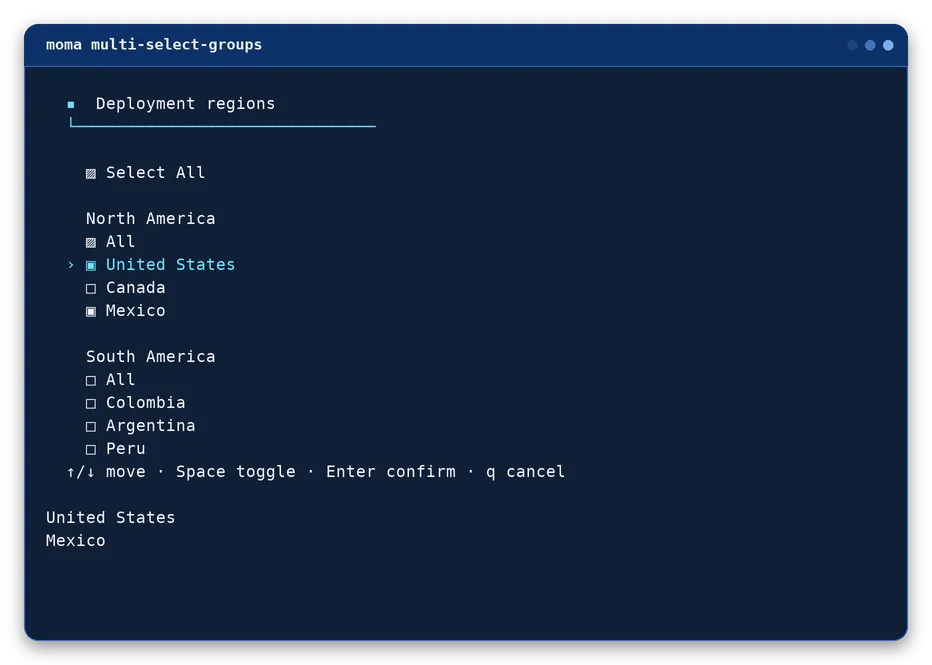
Complete visual and functional reference for the Moma Bash library. Every public function is listed below with its signature, purpose, and terminal output where applicable.
The moma <command> syntax works the same way whether the library is sourced or the executable is installed. Direct moma-* functions (for example moma-msg) remain available after sourcing, for backward compatibility with existing scripts.
Colors
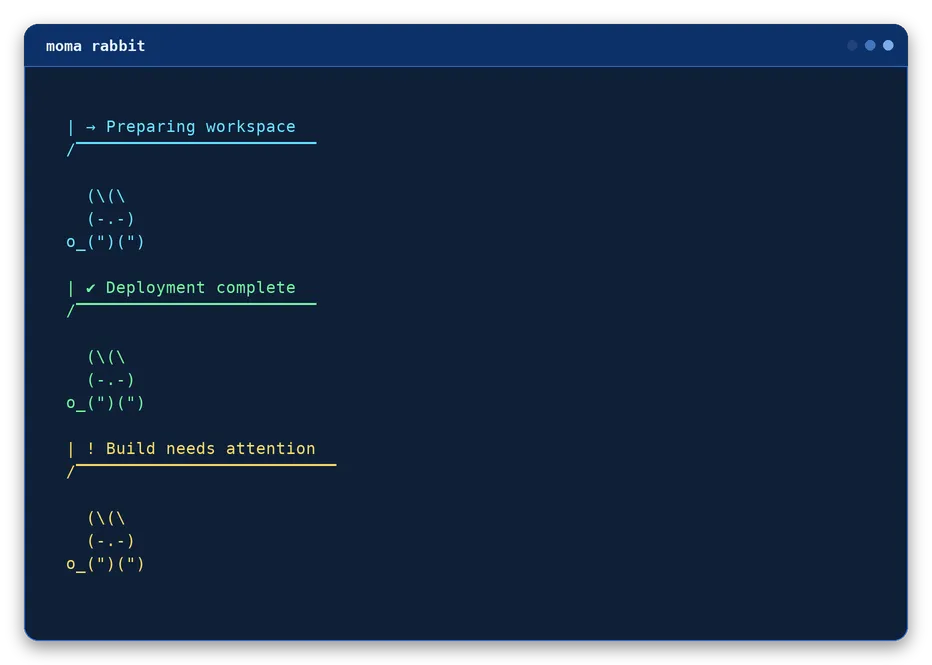
Every component accepts a semantic state or any named color through --color. Nothing here needs to be memorized case by case - it's the same small palette everywhere.
Semantic states
--success, --error, --warning, and --info aren't colors of their own - each just resolves to one of the named colors below.
--success
✔ green
--error
✖ red
--warning
! yellow
--info
→ cyan
Named colors
Pass any of these to --color <name> on every component.cyan is the default when --color is left out entirely.
black
red
green
yellow
blue
purple
cyandefault
white
pink
gray
Visual
Each function names a visible terminal component; semantic meaning is selected with flags.
ASCII heading component
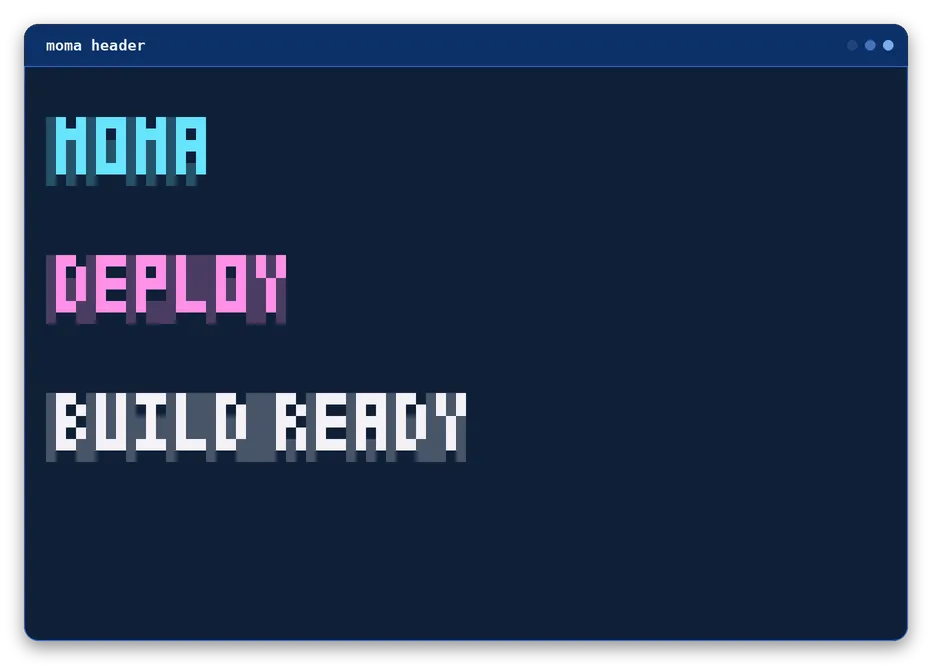
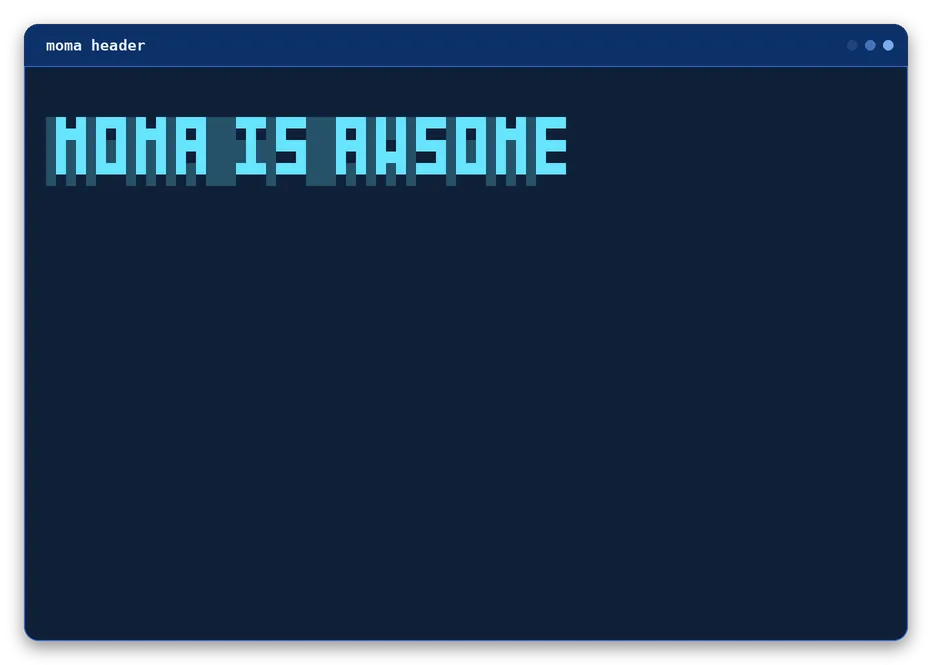
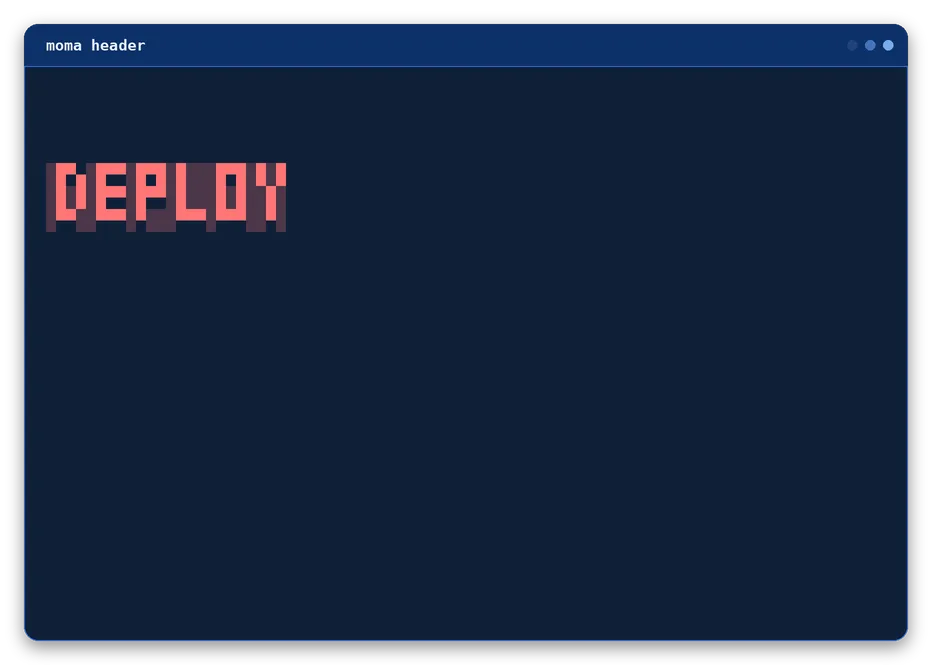
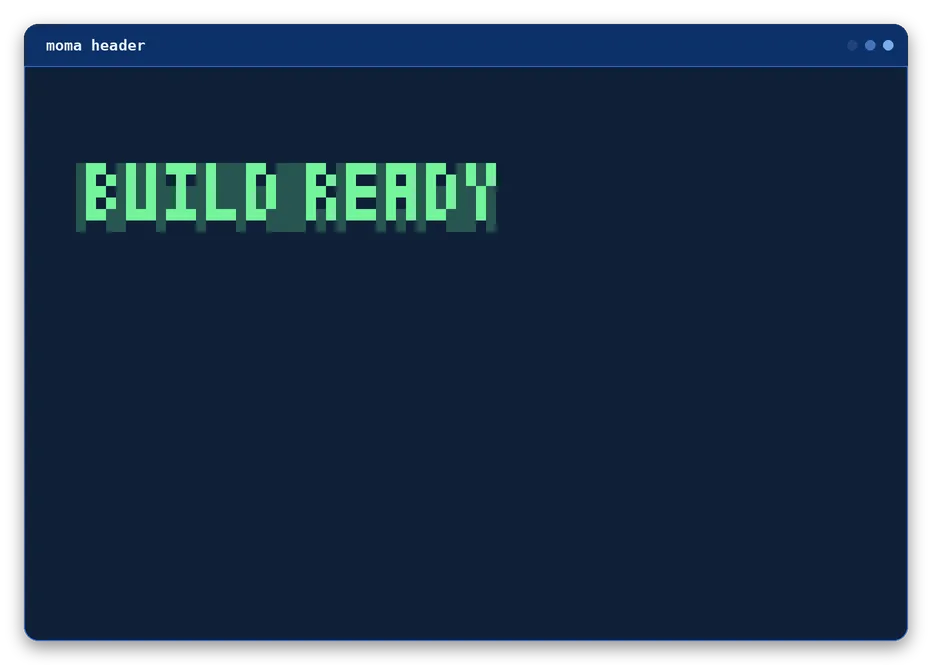
header
Three-line Pagga text for a prominent script or workflow identity, with one blank line above, two below, and no left indent by default.
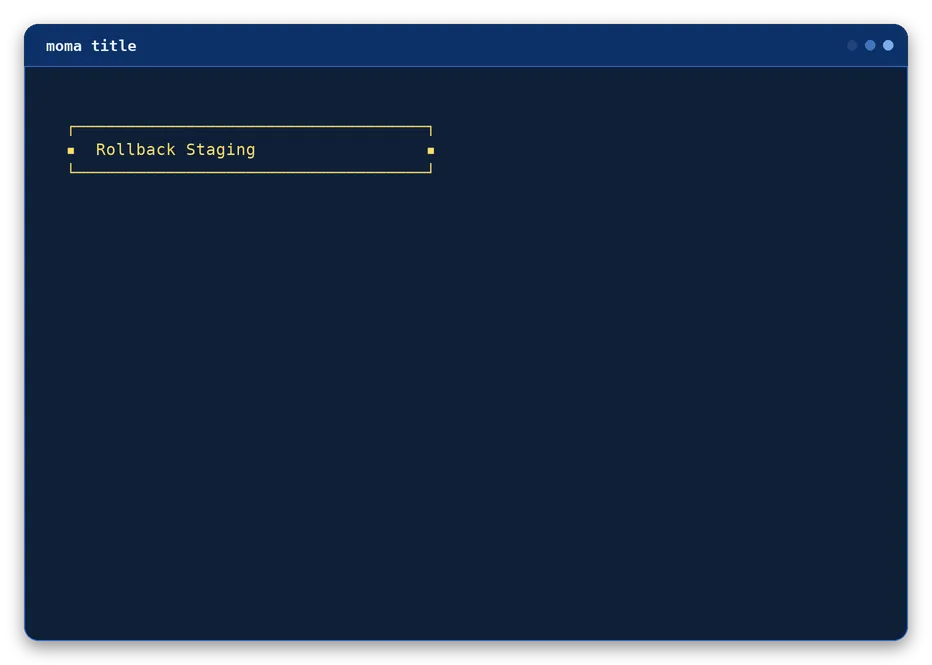
Sets the rule/text color and the left marker to the matching semantic icon (✔, ✖, !, →).
--color <color>
Sets the rule and text color. Defaults to the primary color (cyan) when omitted.
--icon <char>
Sets the left marker. Defaults to ▪.
--no-icon
Drops the left marker in favor of blank filler (there is no left box edge to fall back to here).
--border mirror | line | open
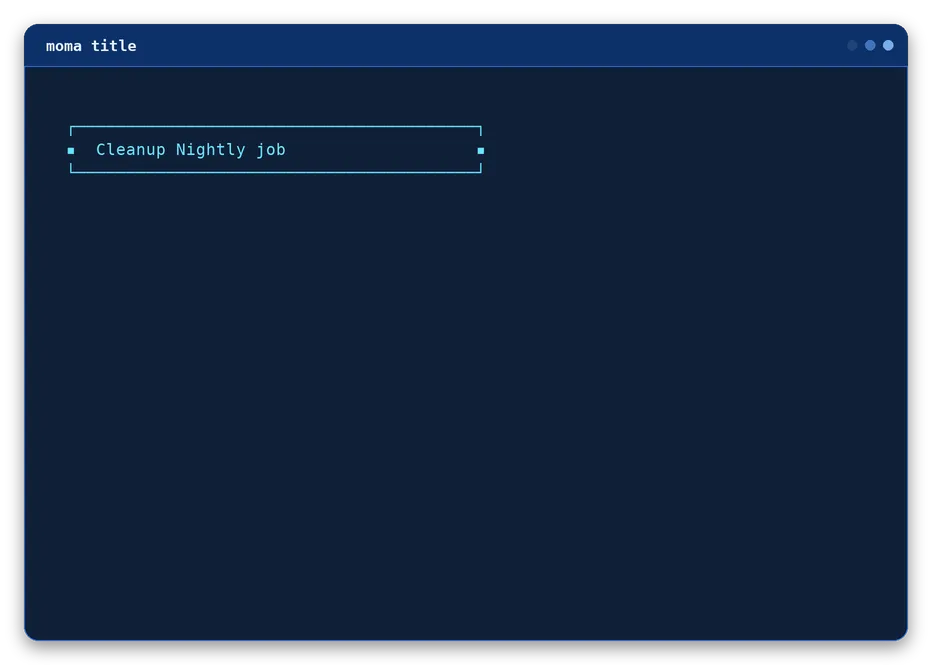
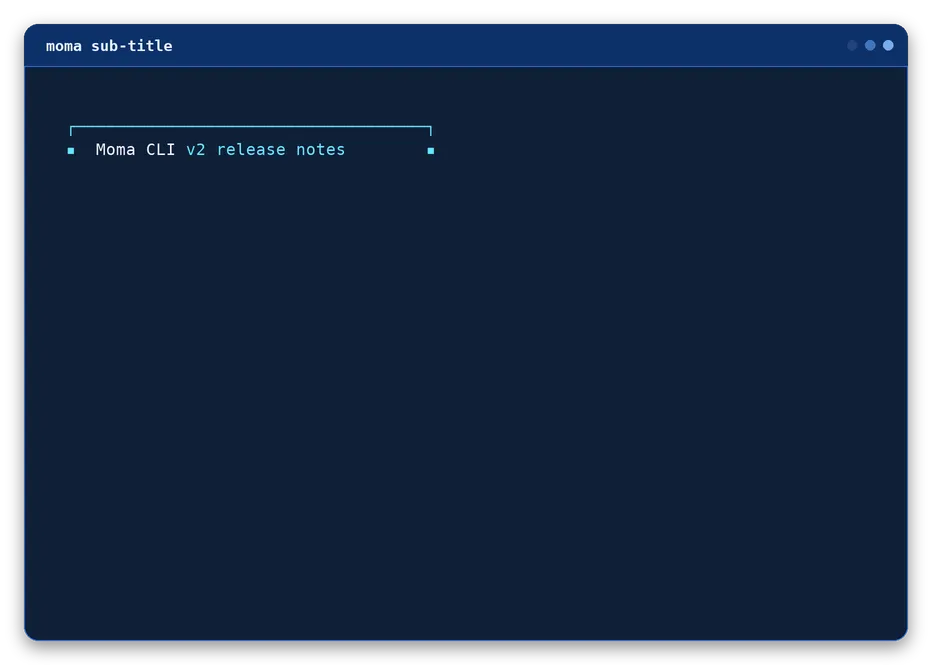
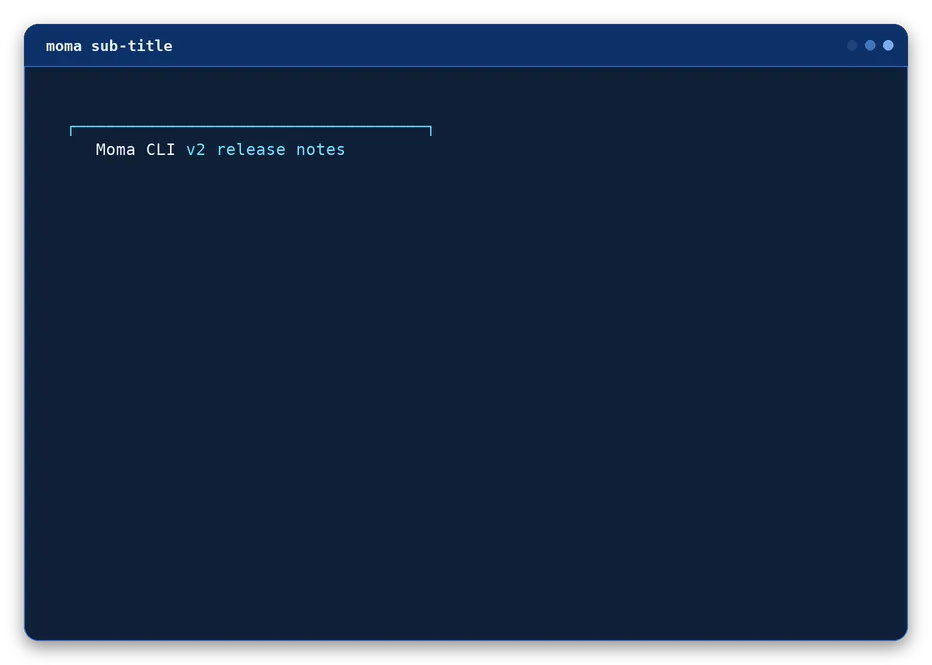
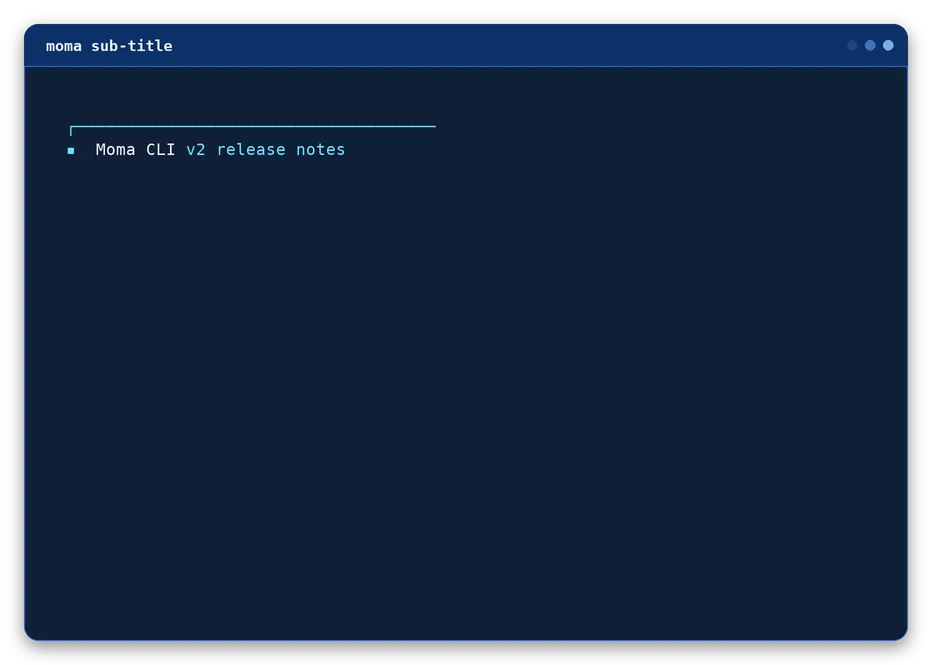
Controls the closing line: open (default) is a bare underline, line closes it with ┘, and mirror also closes it with ┘ and repeats the left marker at the end of the text line.
--message <text>
An optional extra line printed below the rule, after a blank line. Omitted by default.
--min-width <number>
Minimum width in characters. Defaults to 30.
--width <number>
Forces an exact width, overriding automatic sizing. Unset by default.
--max-width <number>
Caps the width when the content would be wider. Unset by default.
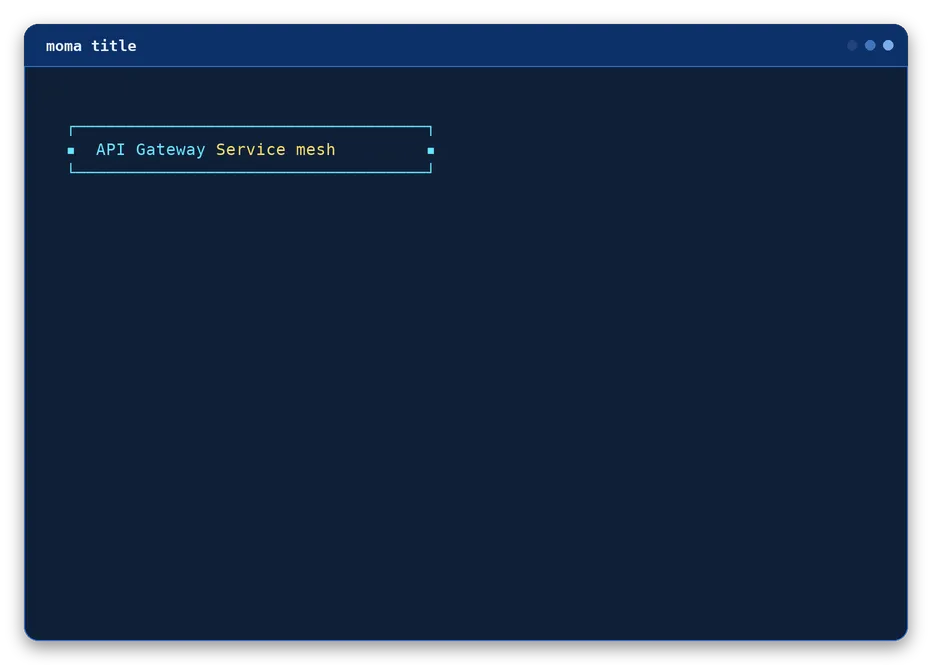
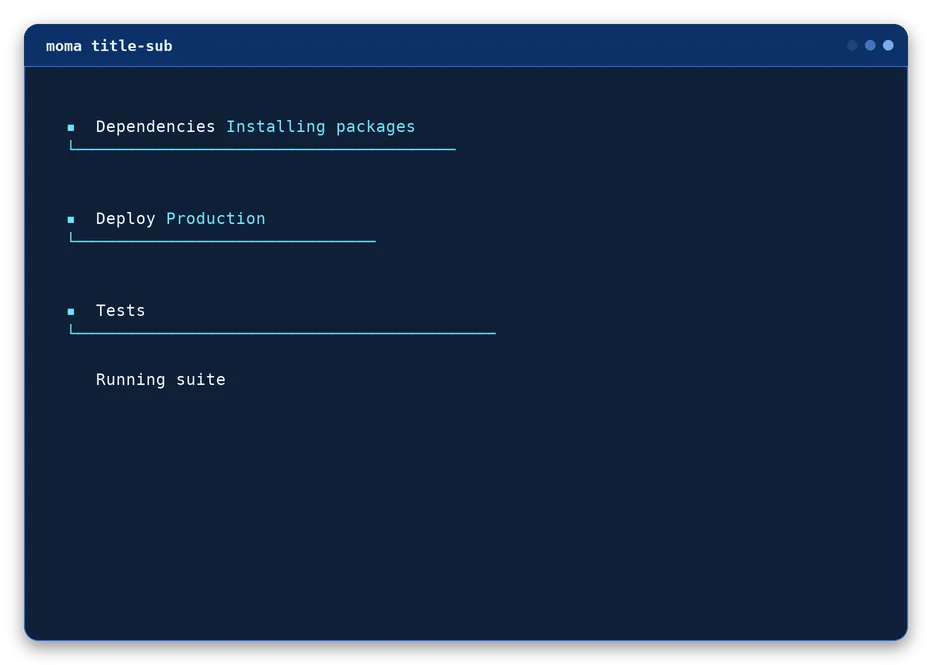
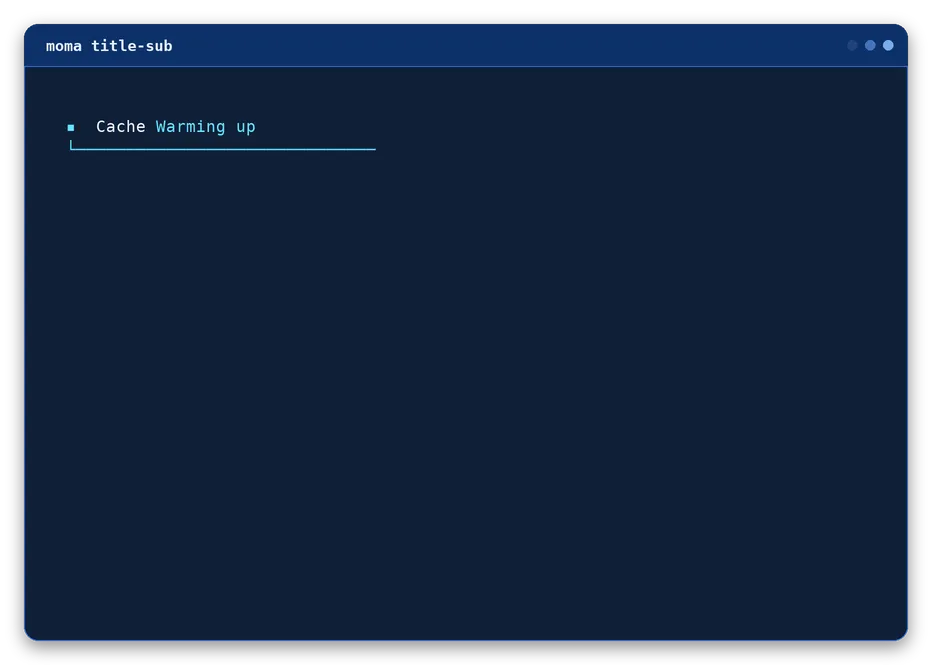
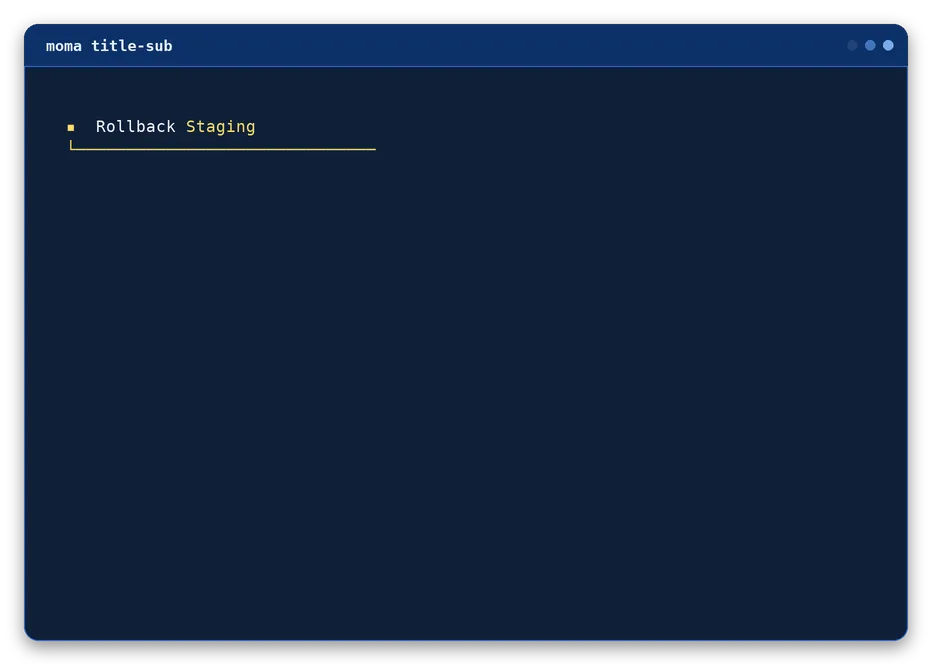
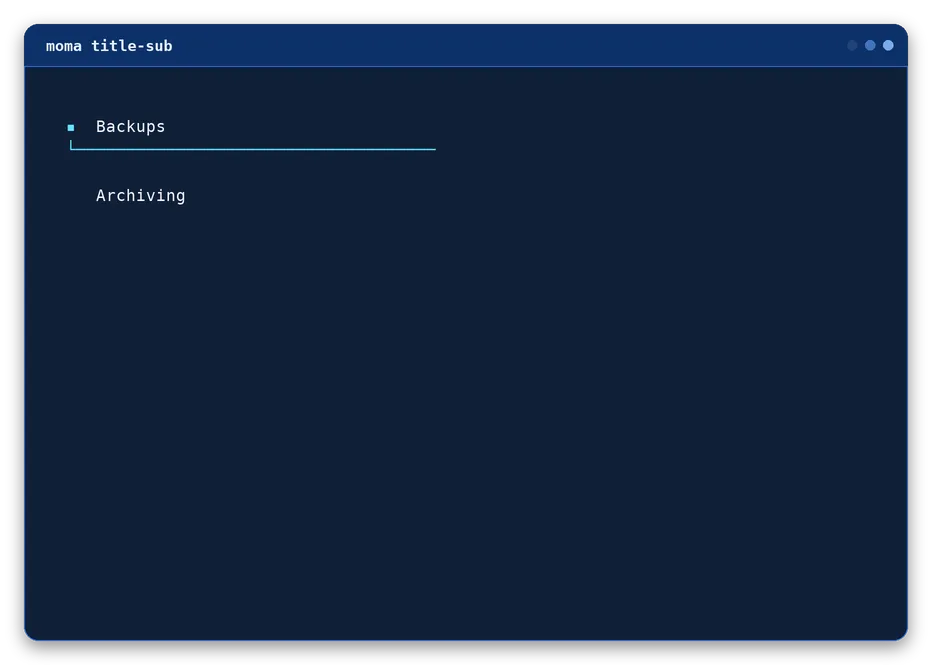
Rule-first secondary heading: the same marker/padding line as moma-title-sub, but with the rule printed above the text instead of below it, and no closing row.
Sets the rule/text color and the left marker to the matching semantic icon (✔, ✖, !, →).
--color <color>
Sets the rule and text color. Defaults to the primary color (cyan) when omitted.
--icon <char>
Sets the left marker. Defaults to ▪.
--no-icon
Drops the left marker in favor of blank filler (there is no left box edge to fall back to here).
--border mirror | line | open
Controls the rule above the text: open leaves it without a ┐, line closes it with ┐, and mirror (default) also closes it with ┐ and repeats the left marker at the end of the text line.
--min-width <number>
Minimum width in characters. Defaults to 35.
--width <number>
Forces an exact width, overriding automatic sizing. Unset by default.
--max-width <number>
Caps the width when the content would be wider. Unset by default.
Bash examples
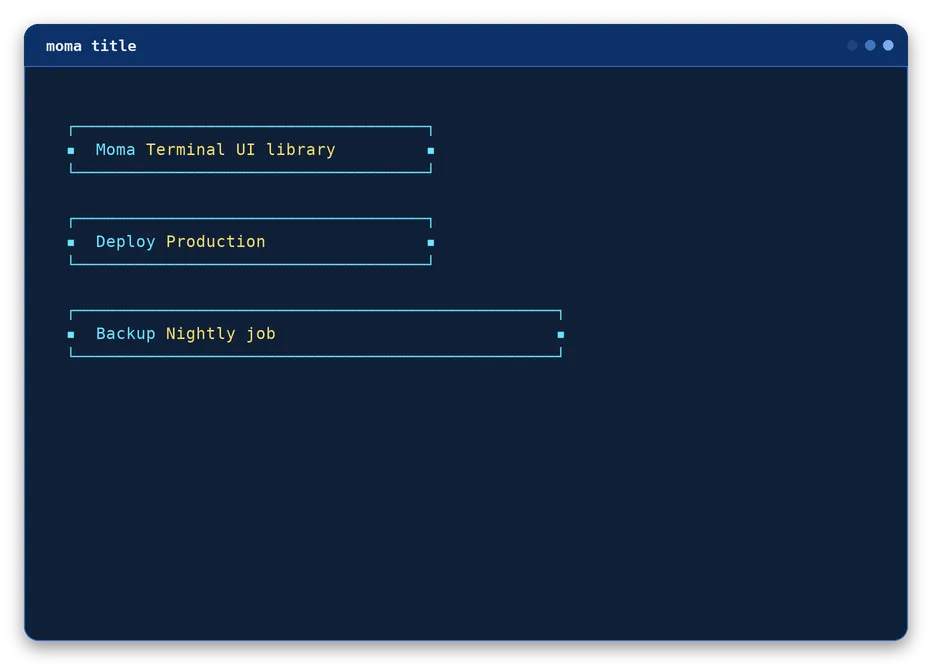
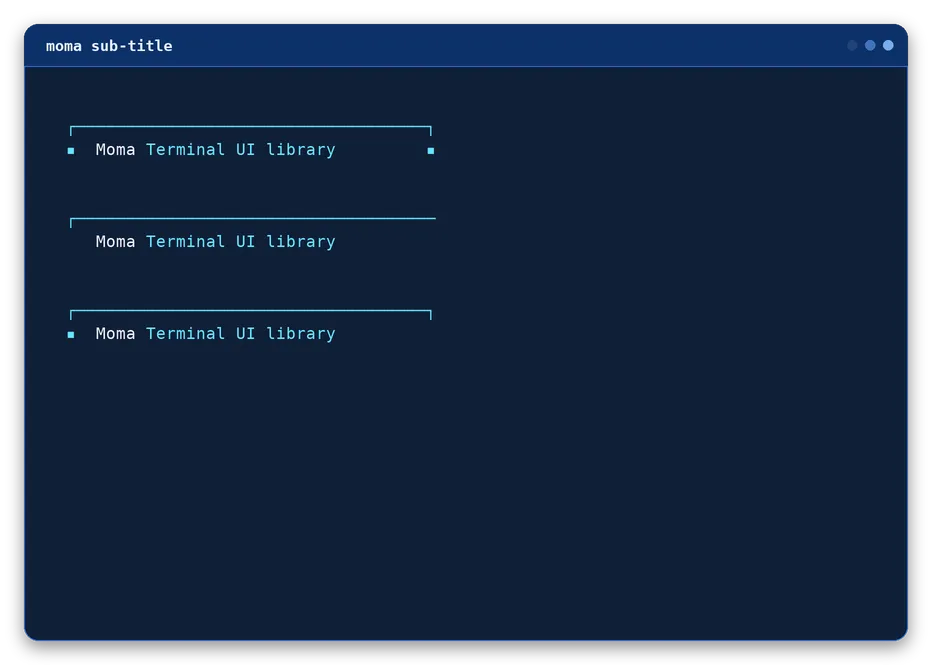
moma sub-title "Moma" "Terminal UI library"
moma sub-title "Moma" "Terminal UI library" --no-icon --border open
moma sub-title "Moma" "Terminal UI library" --border line
Output
Section component
section
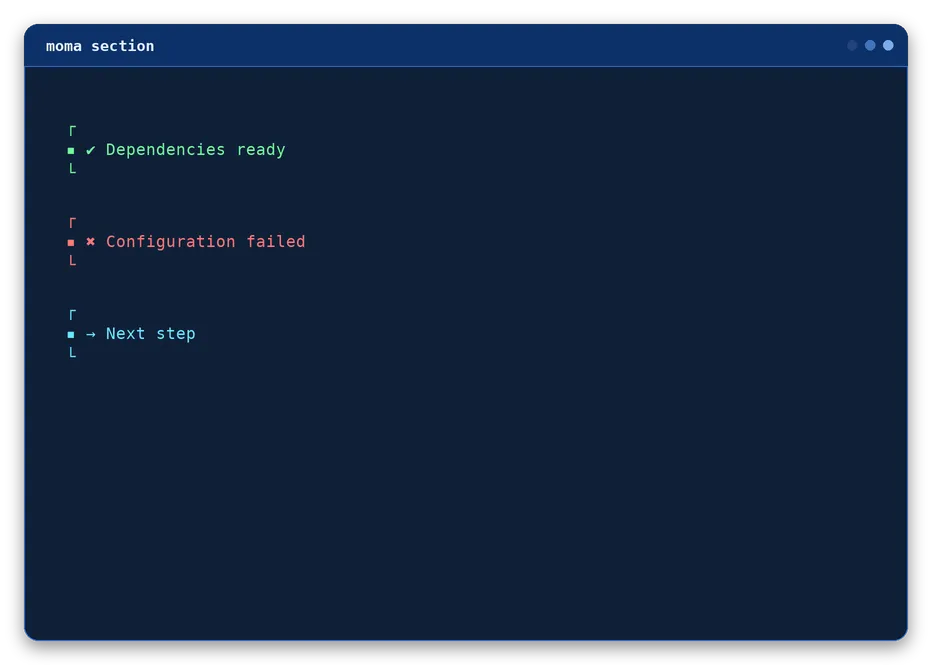
Strong separator that gives semantic context to the content that follows.
moma section "Dependencies ready" --success
--success | --error | --warning | --info
Semantic shortcuts that set both the heading color and its default icon (green ✔, red ✖, yellow !, cyan →).
--icon <icon>
Overrides the icon shown before the text.
Bash examples
moma section "Dependencies ready" --success
moma section "Configuration failed" --error
moma section "Next step" --info --icon "→"
Output
Message component
msg
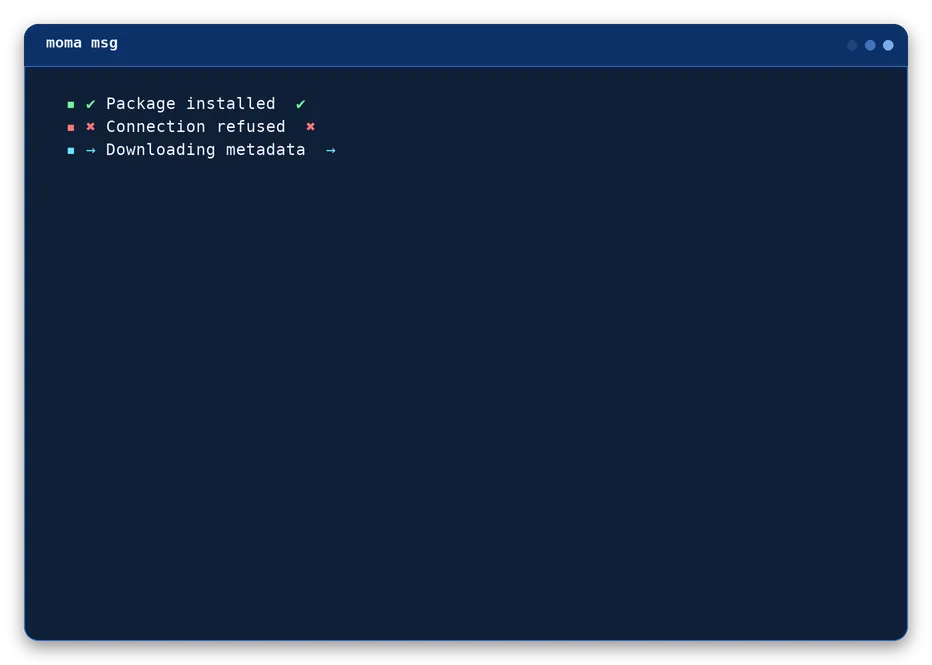
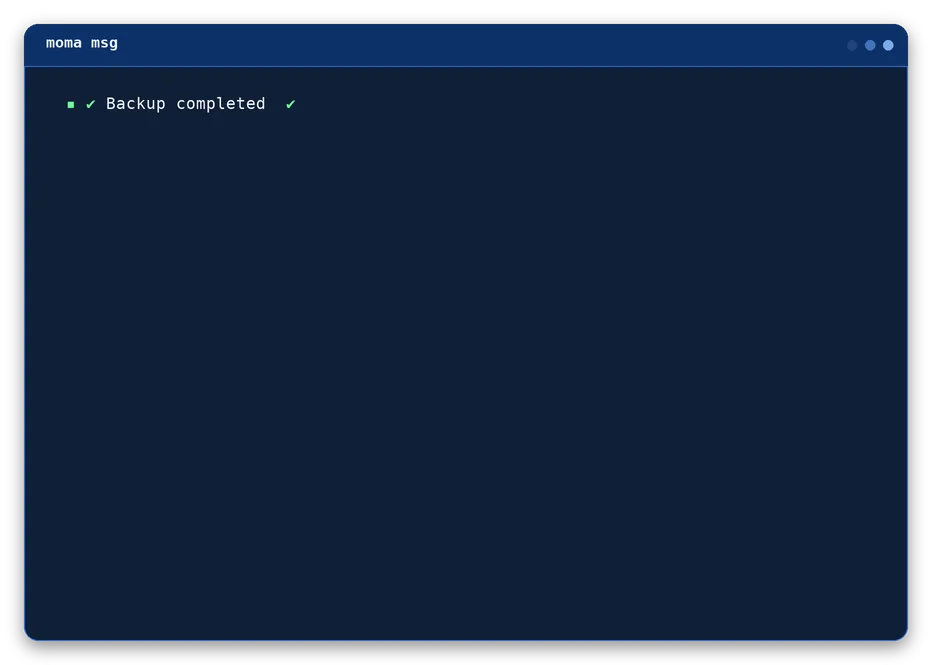
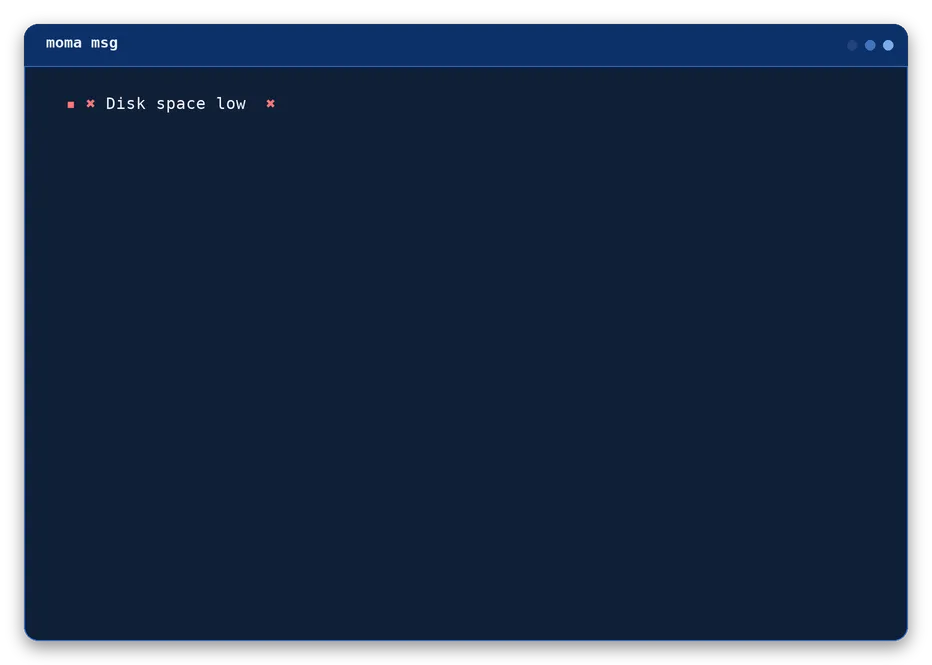
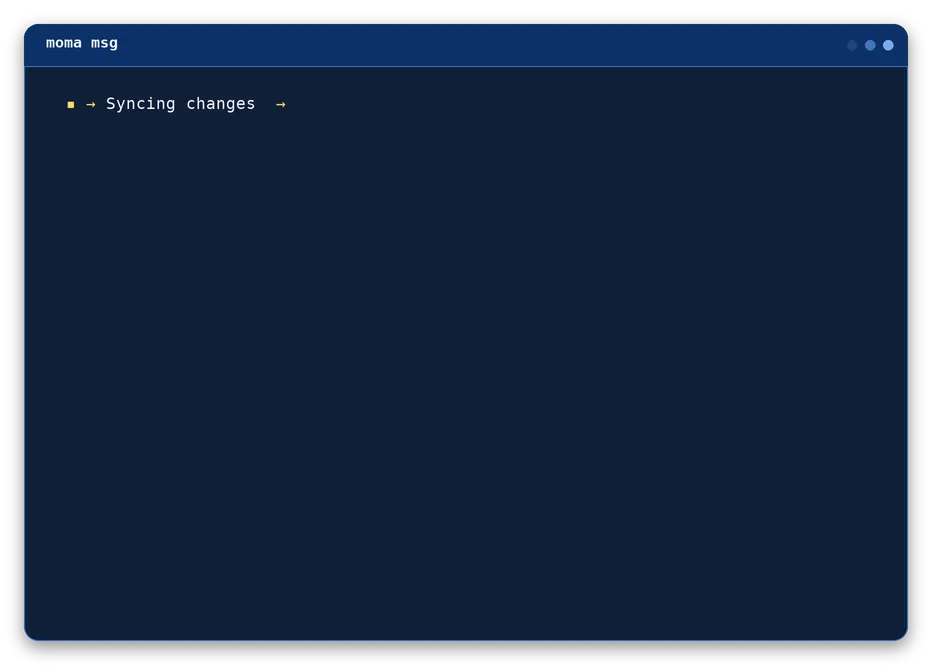
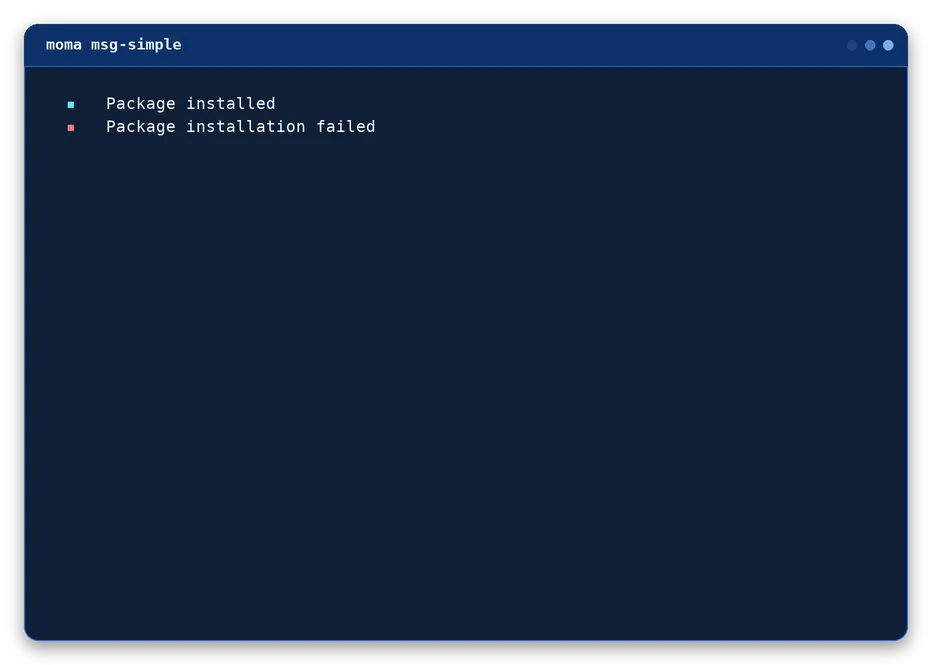
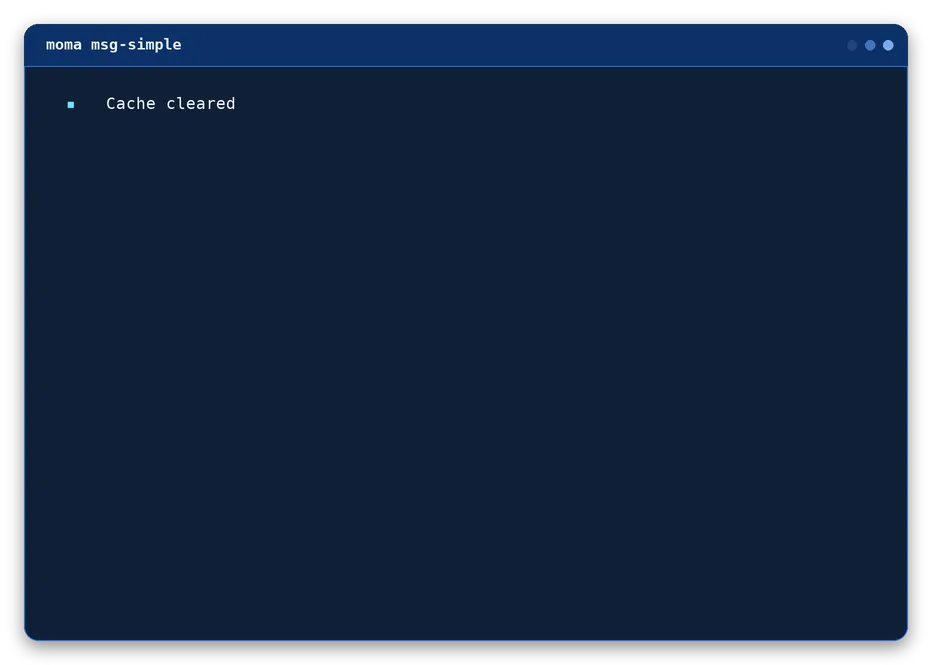
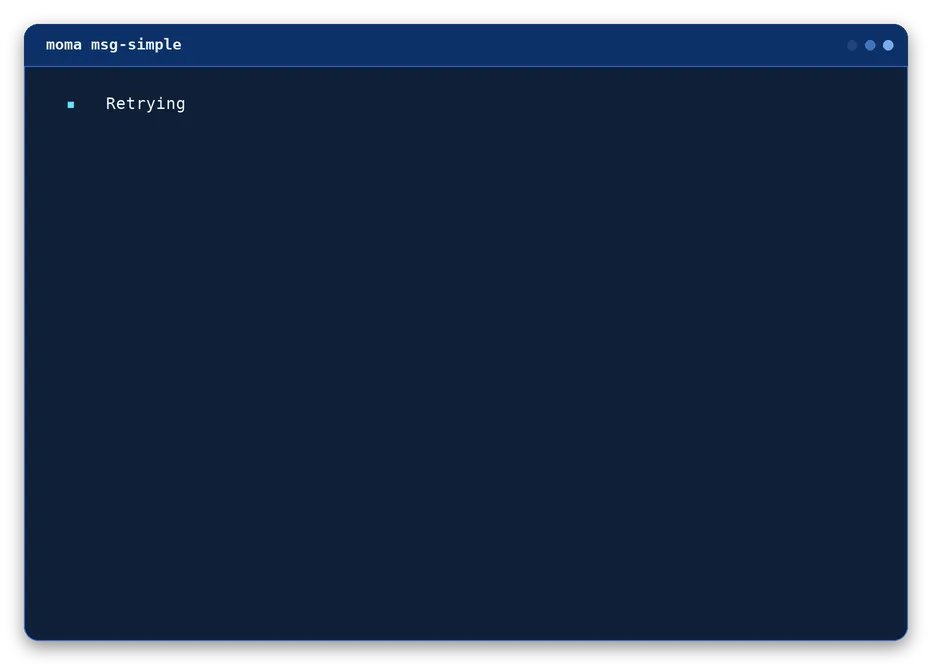
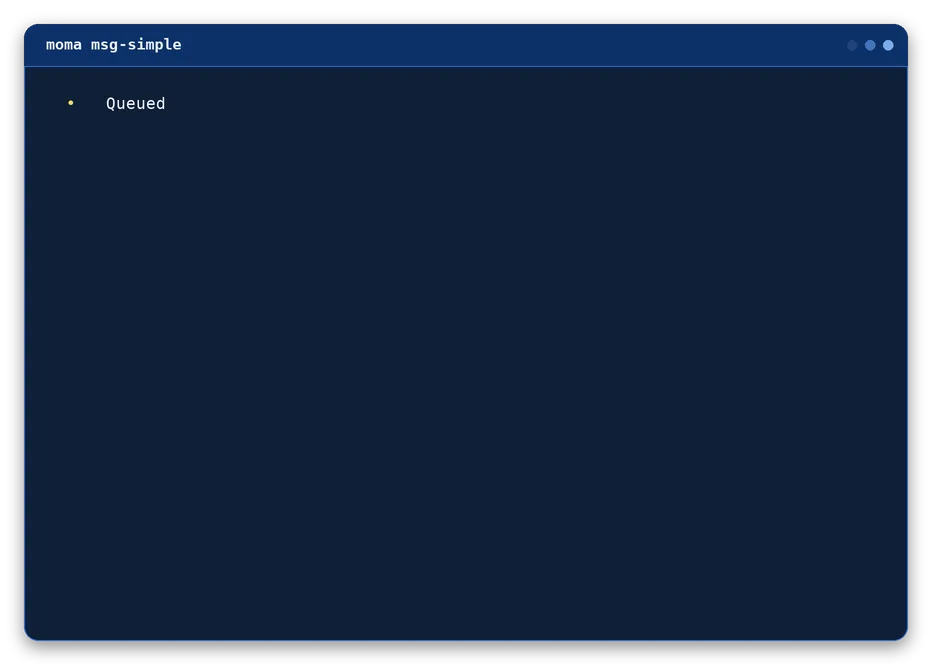
Compact feedback with semantic defaults or custom color and icon overrides.
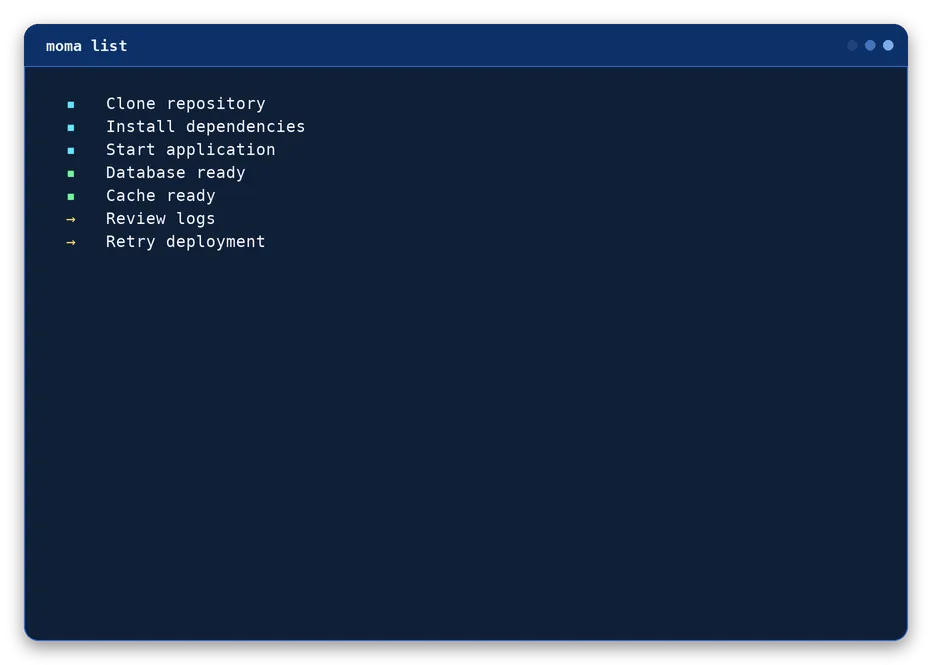
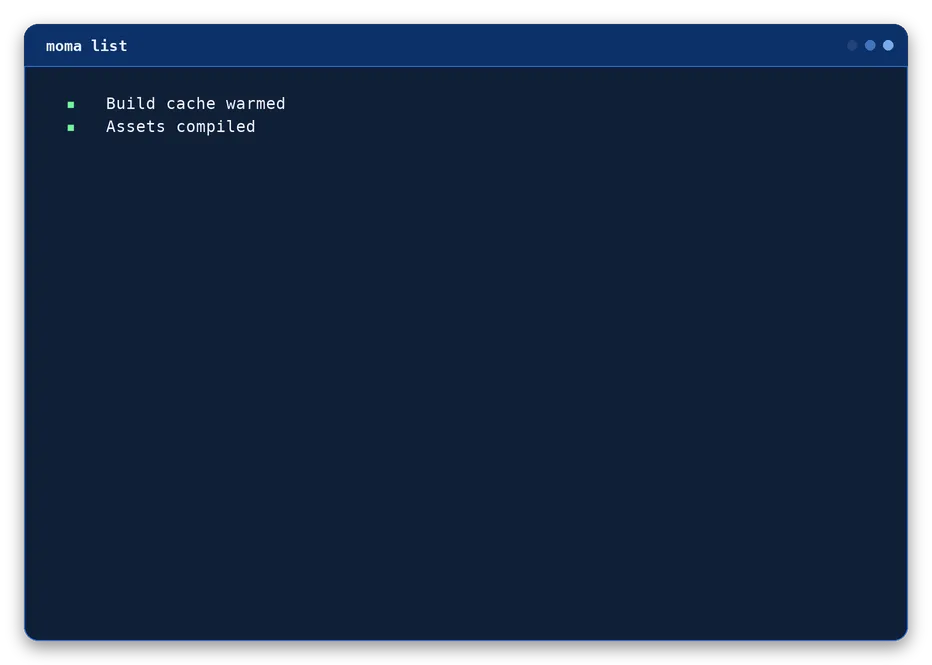
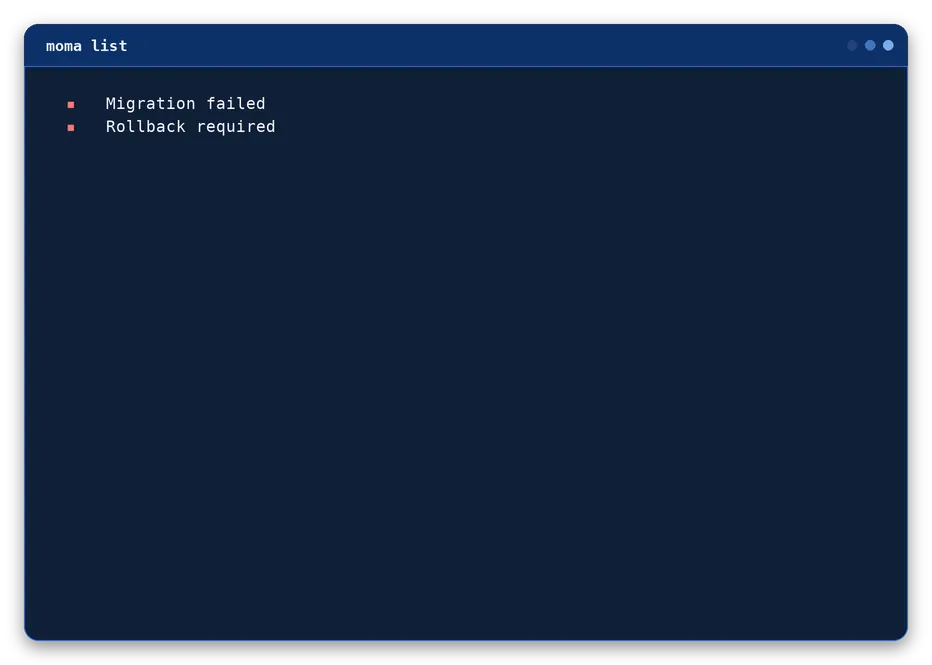
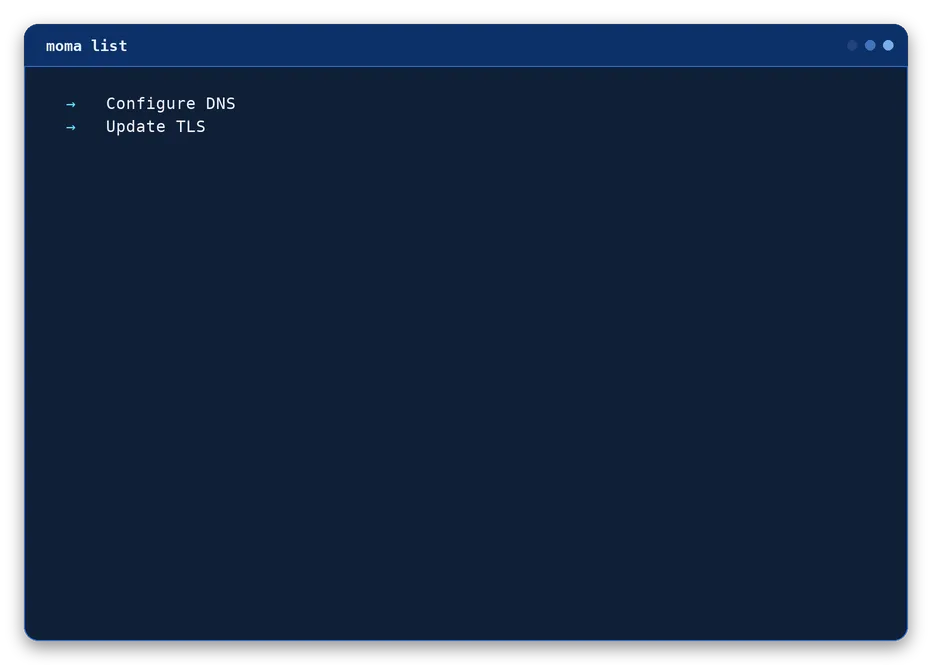
An unordered terminal list with a consistent marker for every item.
moma list "Clone repository" "Install dependencies" [--success|--error|--warning|--info]
--success | --error | --warning | --info
Sets the marker color for every item to the semantic color (green, red, yellow, cyan).
--marker <marker>
Overrides the marker glyph shown before each item. Defaults to "▪".
--color <value>
Overrides the marker color for every item. Defaults to the primary color (cyan) when omitted.
Bash examples
moma list "Clone repository" "Install dependencies" "Start application"
moma list "Database ready" "Cache ready" --success
moma list "Review logs" "Retry deployment" --marker "→" --color yellow
Output
Notice component
box
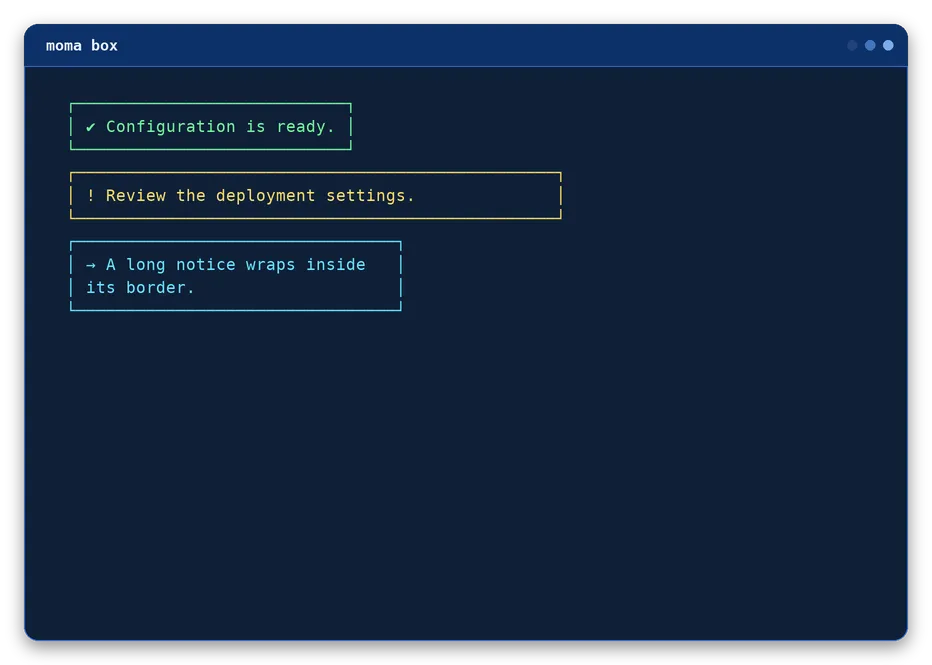
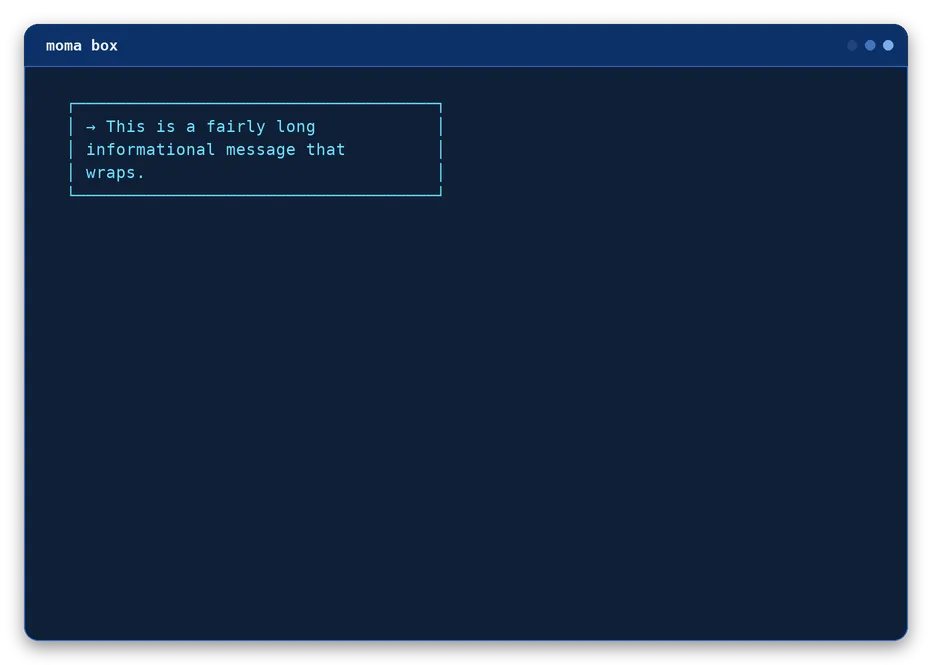
Framed notice with automatic, fixed, or maximum width. Long content wraps inside the border.
moma box "Configuration is ready." --success [--width number] [--max-width number]
--success | --error | --warning | --info
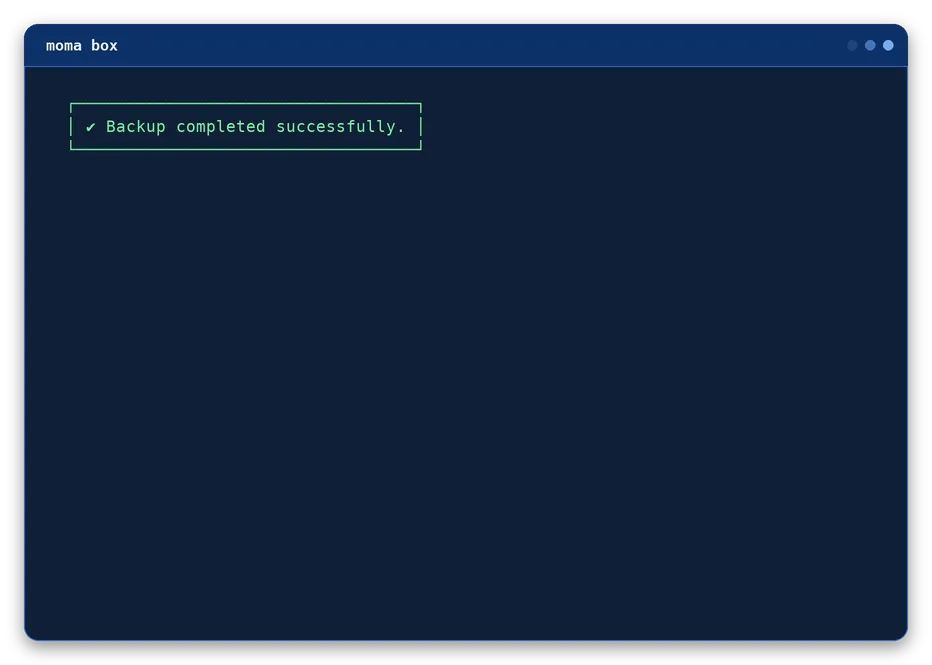
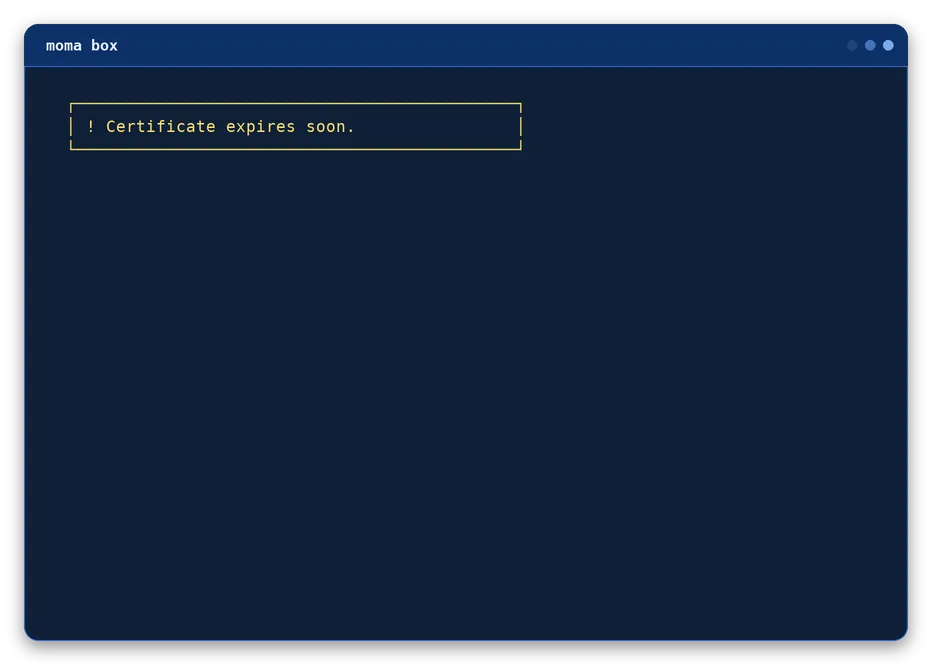
Sets both the border/text color and a default leading icon (green ✔, red ✖, yellow !, cyan →).
--width <number>
Forces an exact box width. Unset by default.
--max-width <number>
Caps the box width when the content would be wider. Unset by default.
Bash examples
moma box "Configuration is ready." --success
moma box "Review the deployment settings." --warning --width 48
moma box "A long notice wraps inside its border." --info --max-width 32
Output
Content block component
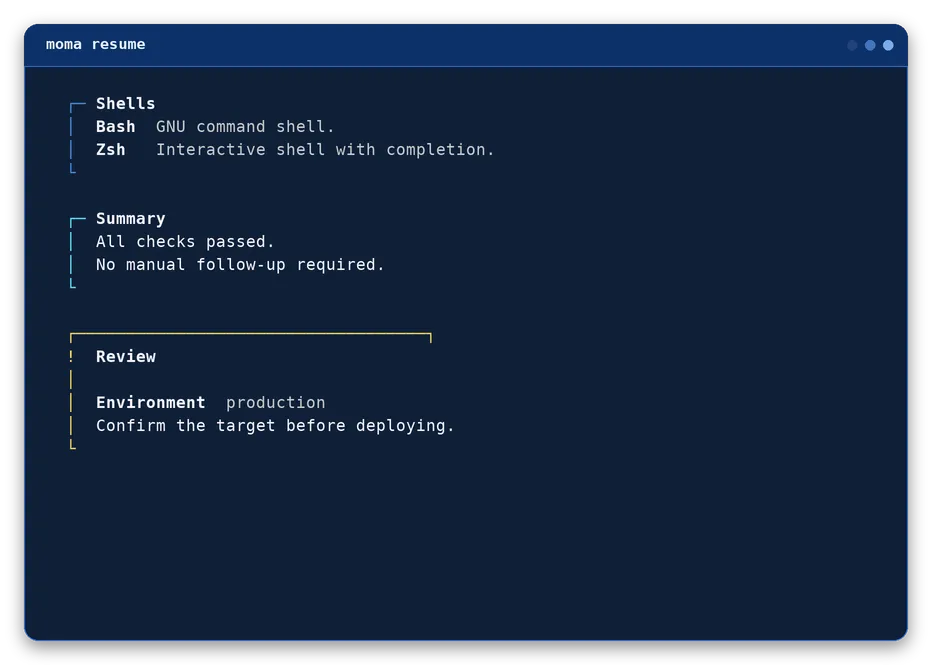
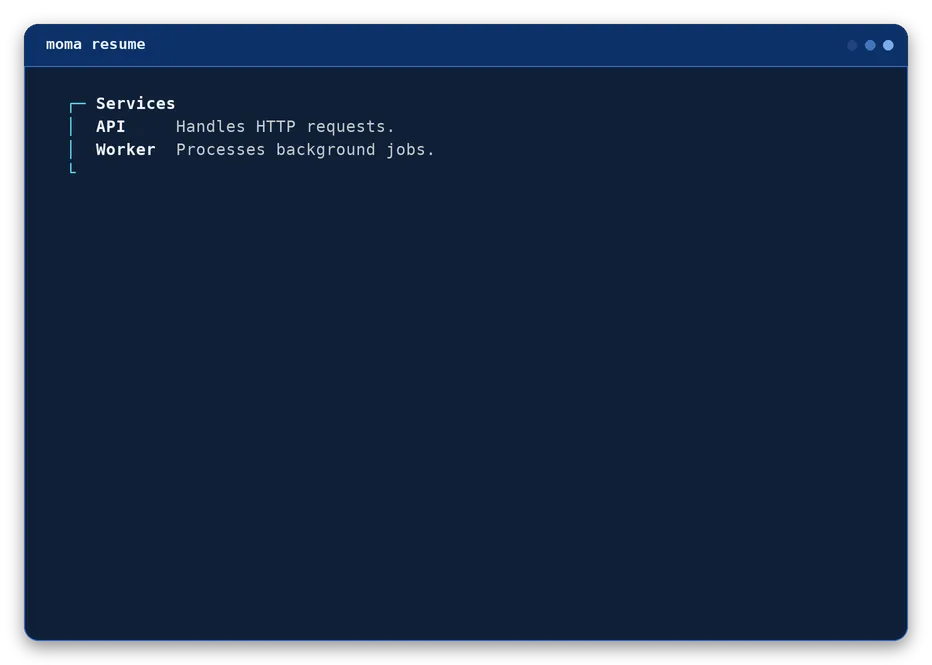
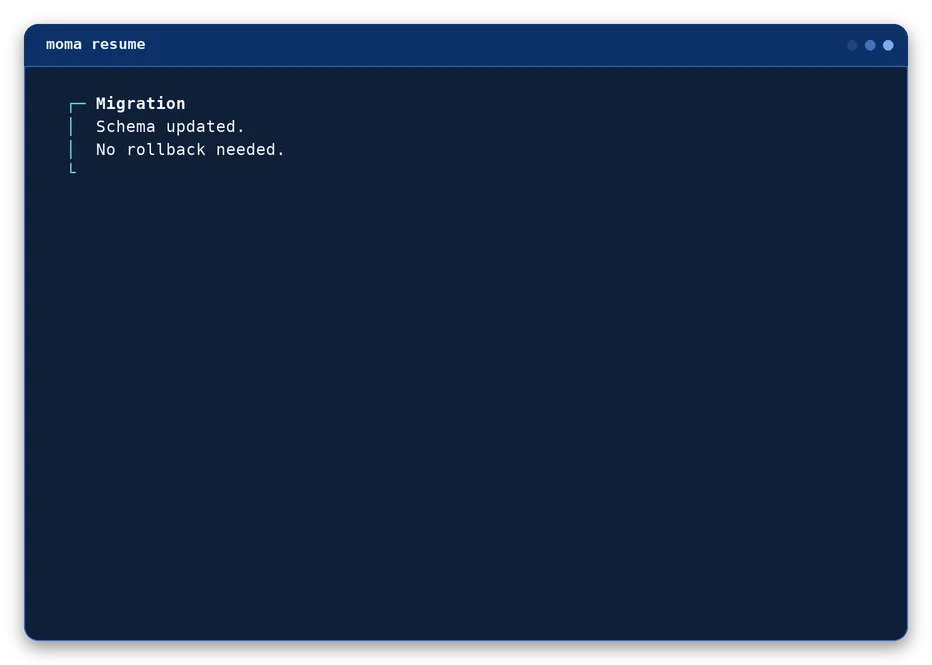
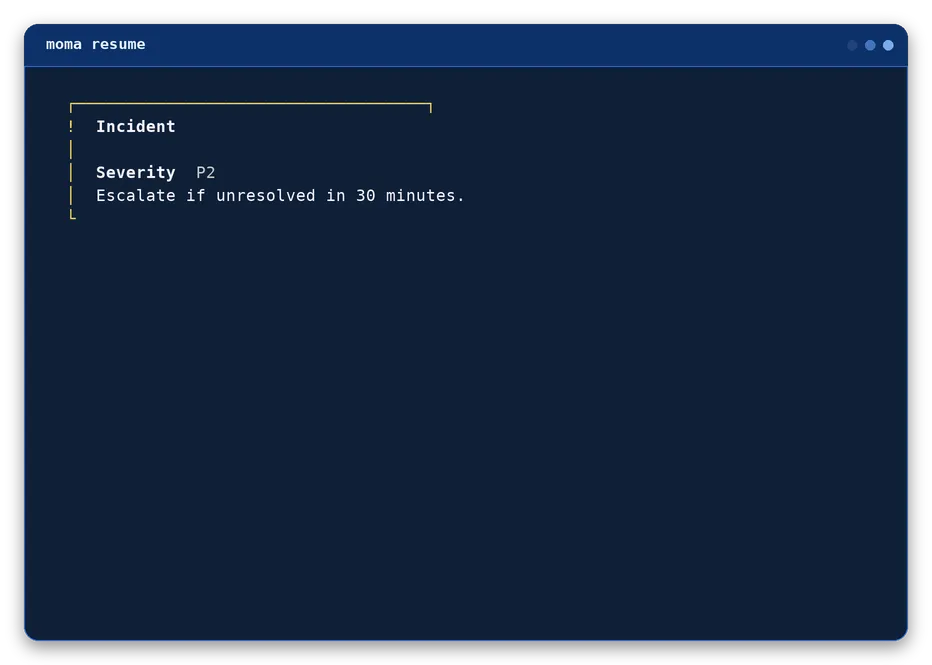
resume
Titled, colored content block for grouping related information, such as a résumé section or a categorized reference list. Rows come from repeated --item (a bold term next to a muted description, aligned as a column) and --text (a plain line), interleaved in the order given. The title is a single open line by default; setting an icon switches to a boxed header, mirroring moma-title's own marker conventions.
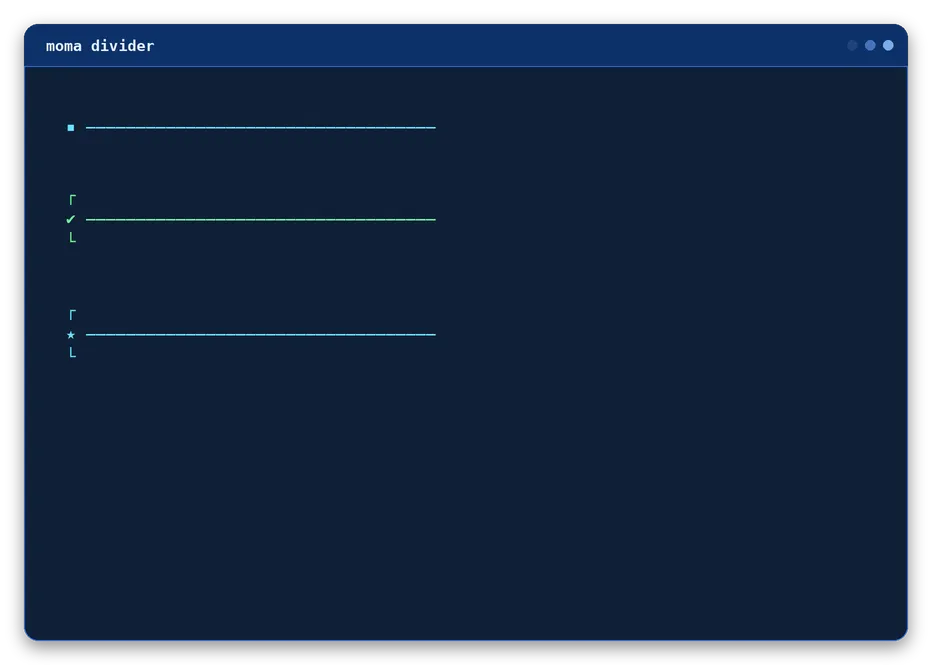
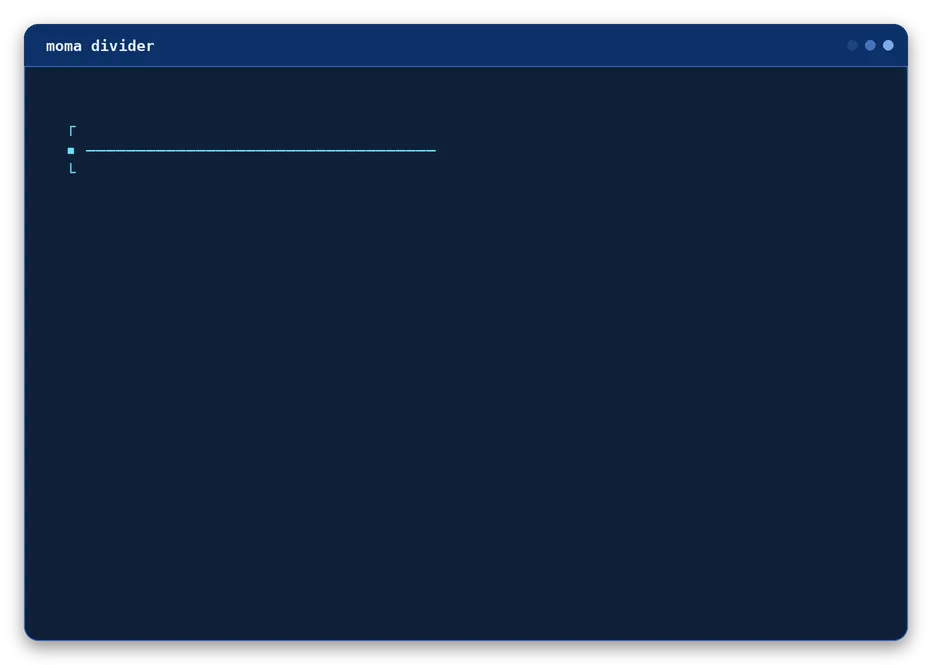
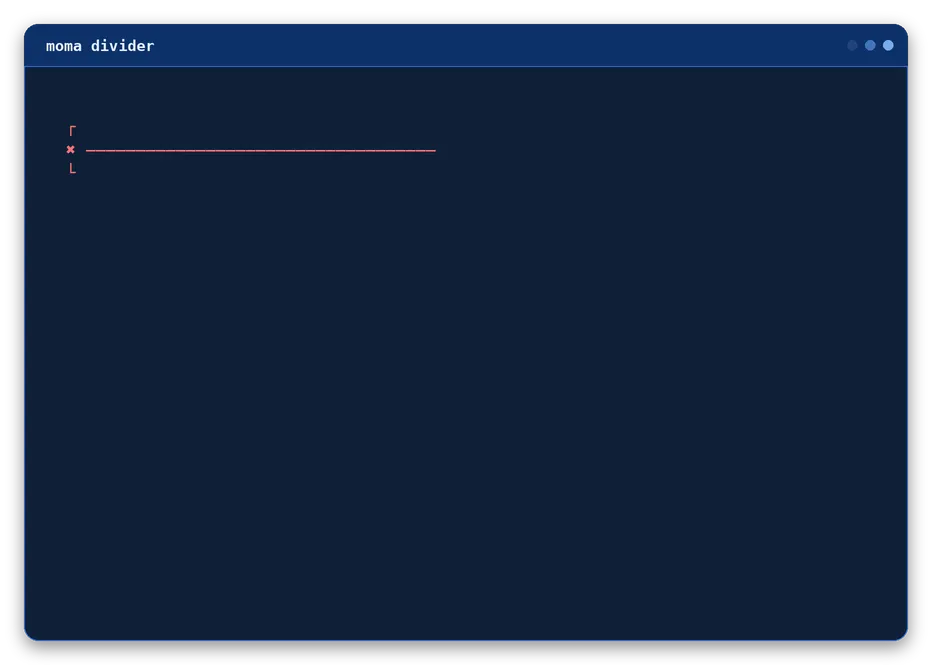
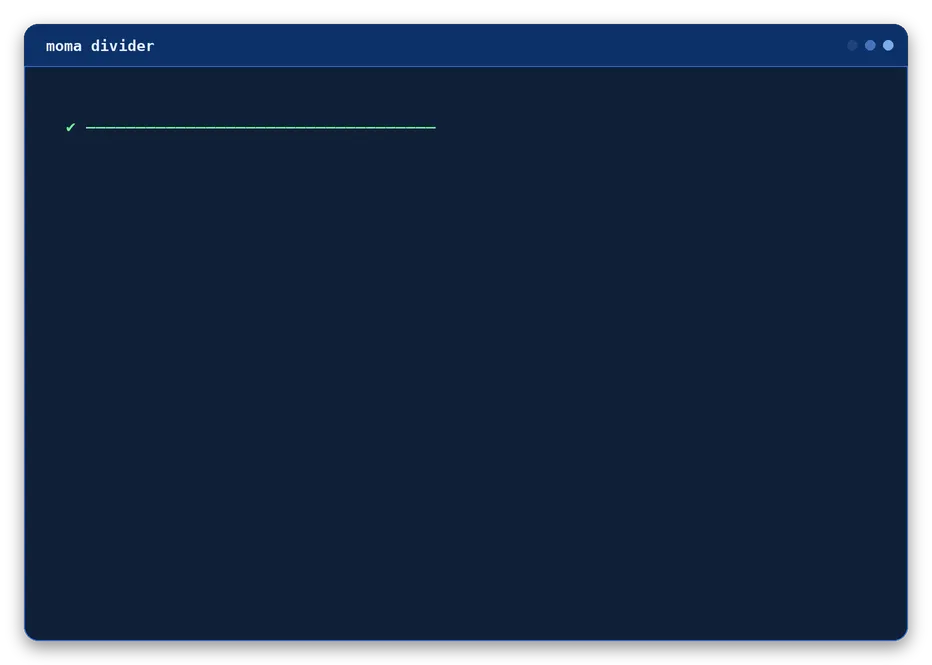
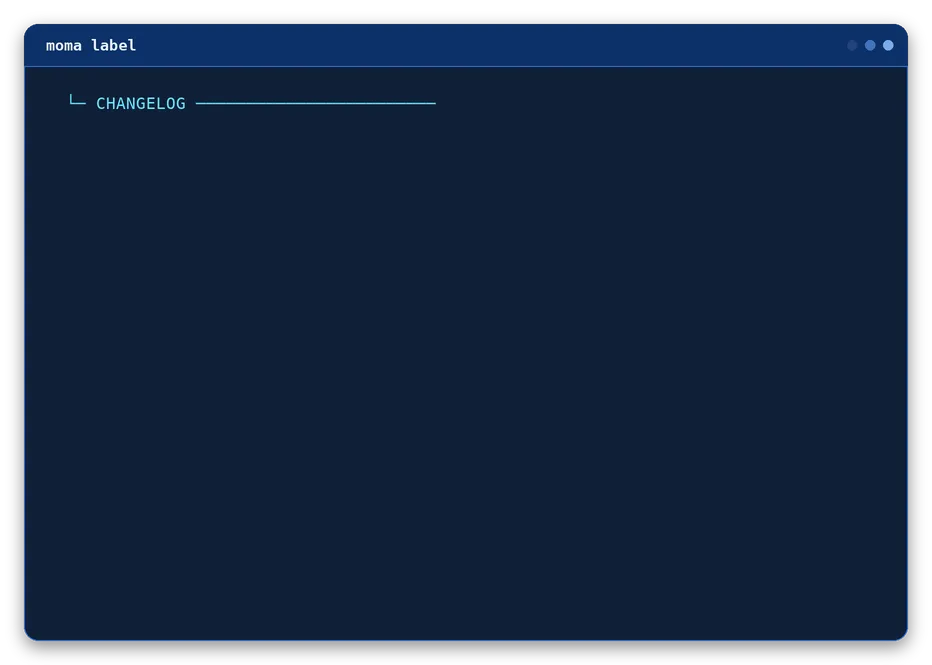
Marker-led horizontal rule, for separating sections without a full heading. Uses — (em dash) instead of the ─ box-drawing character elsewhere in Moma, and has no left box edge, only an optional bare ┌/└ pair framing the rule above and below.
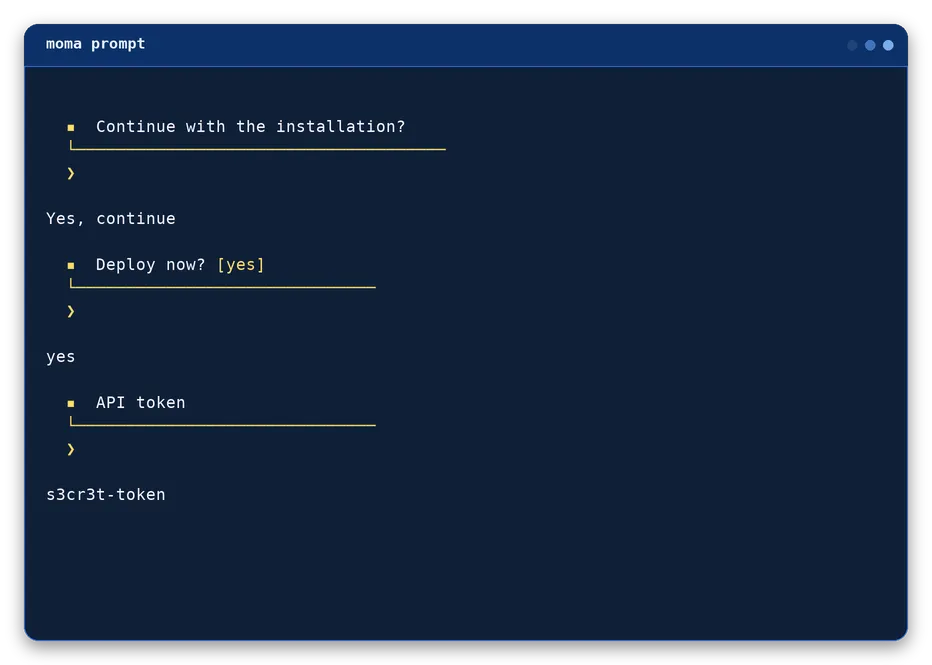
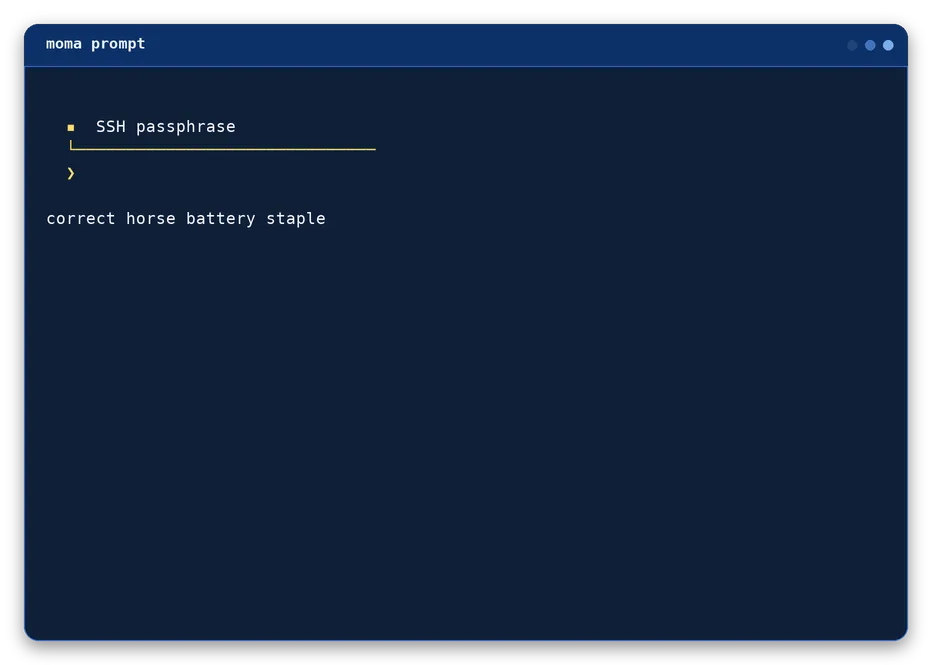
Free-text prompt with moma-title-sub's own marker + underline look instead of moma-input's boxed field - the two share the same read, validation, and secret-masking machinery, and differ only in how the question is drawn.
Sets the color and the marker to the matching semantic icon (✔, ✖, !, →).
--color <color>
Sets the prompt color. Defaults to the warning color (yellow) when omitted.
--icon <char>
Sets the left marker. Defaults to ▪.
--no-icon
Drops the left marker in favor of blank filler.
--border mirror | line | open
Controls the underline: open (default) is a bare underline, line closes it with ┘, and mirror also closes it with ┘ and repeats the left marker at the end of the question line.
--cursor <char>
The symbol the answer is typed after. Defaults to "❯".
--default <value>
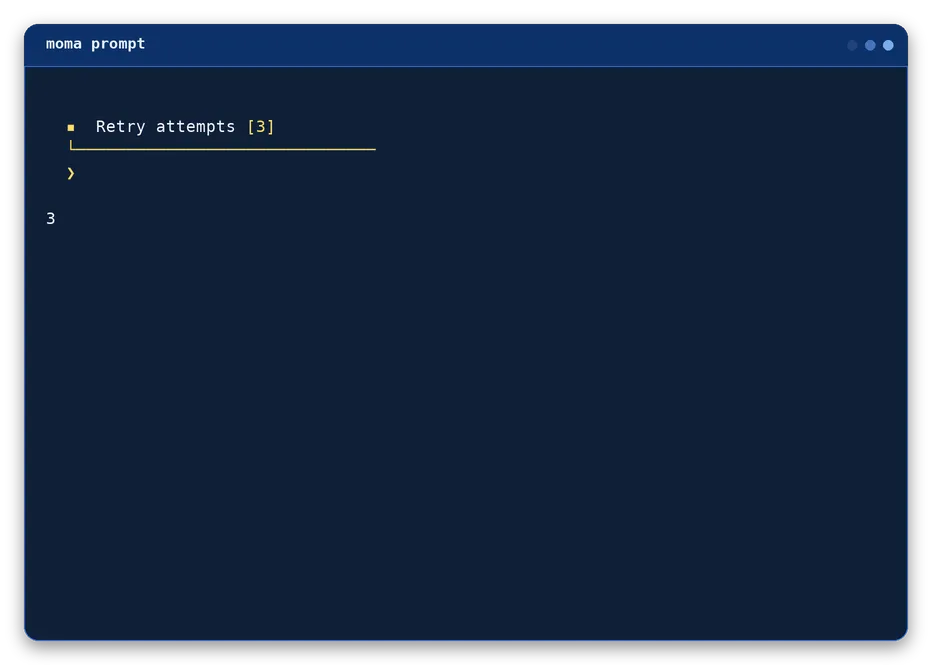
Shown as "[value]" after the question, and substituted if the typed response is empty. Empty by default.
--secret
Masks each typed character instead of echoing it.
--mask <char>
The character echoed for each keystroke when --secret is used. Defaults to "*".
--required
Re-prompts until a non-empty value is produced.
--trim
Strips leading/trailing whitespace from the entered value.
--min-width <number>
Minimum underline width in characters. Defaults to 30.
--width <number>
Forces an exact width, overriding automatic sizing. Unset by default.
--max-width <number>
Caps the width when the content would be wider. Unset by default.
Bash examples
answer="$(moma prompt "Continue with the installation?")"
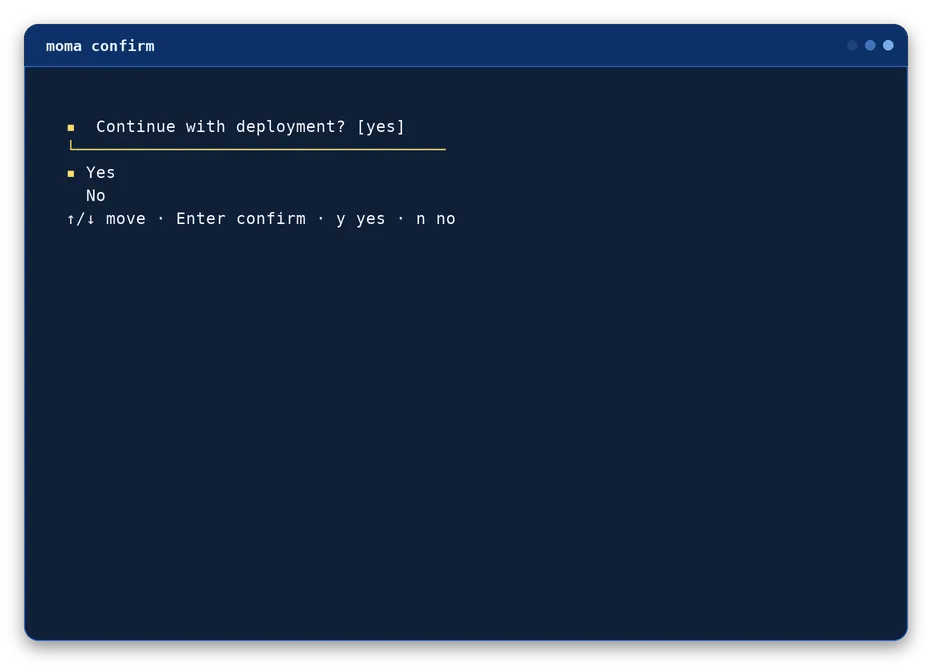
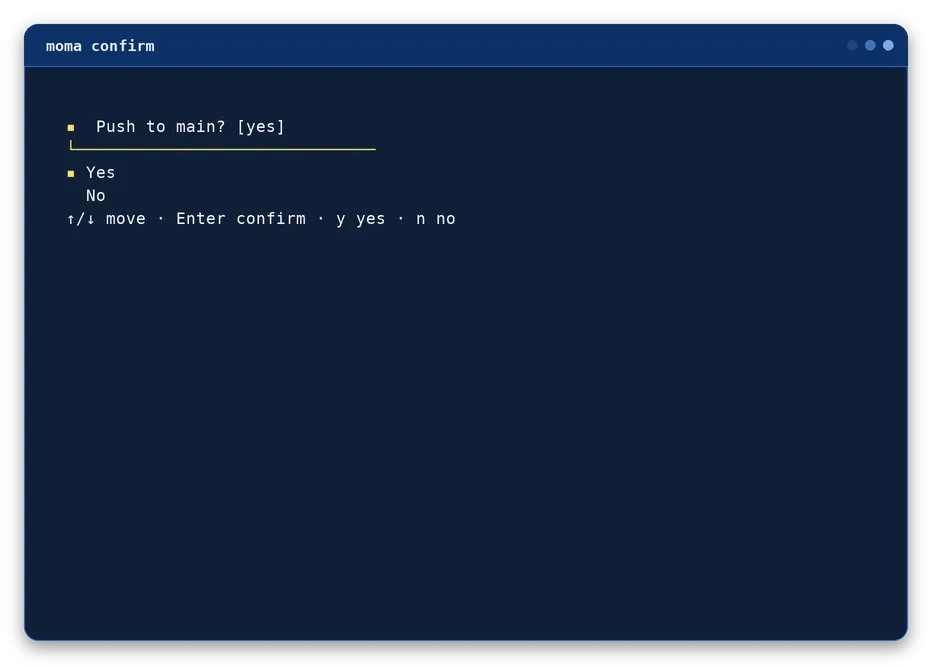
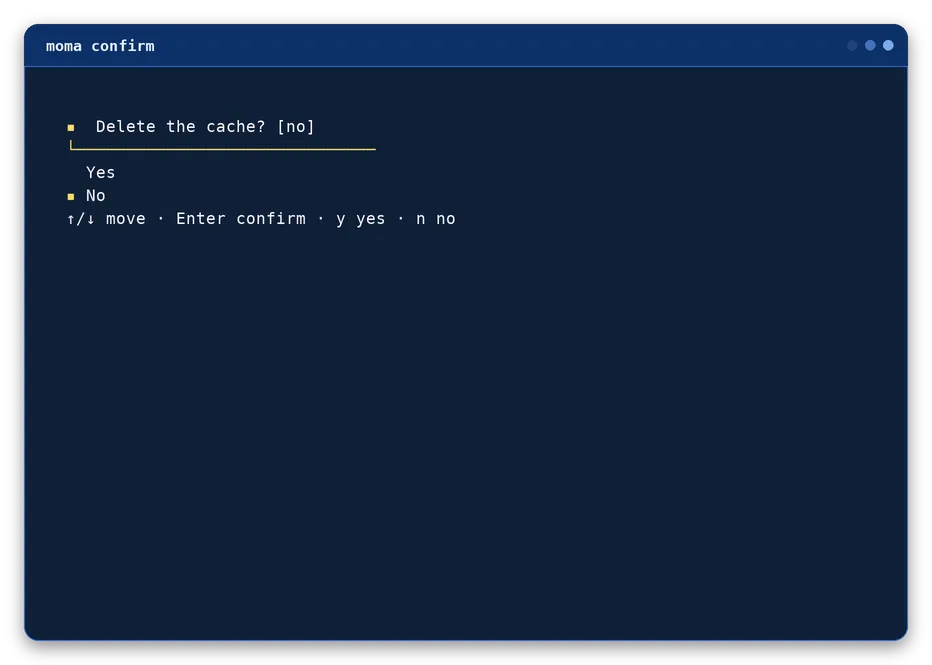
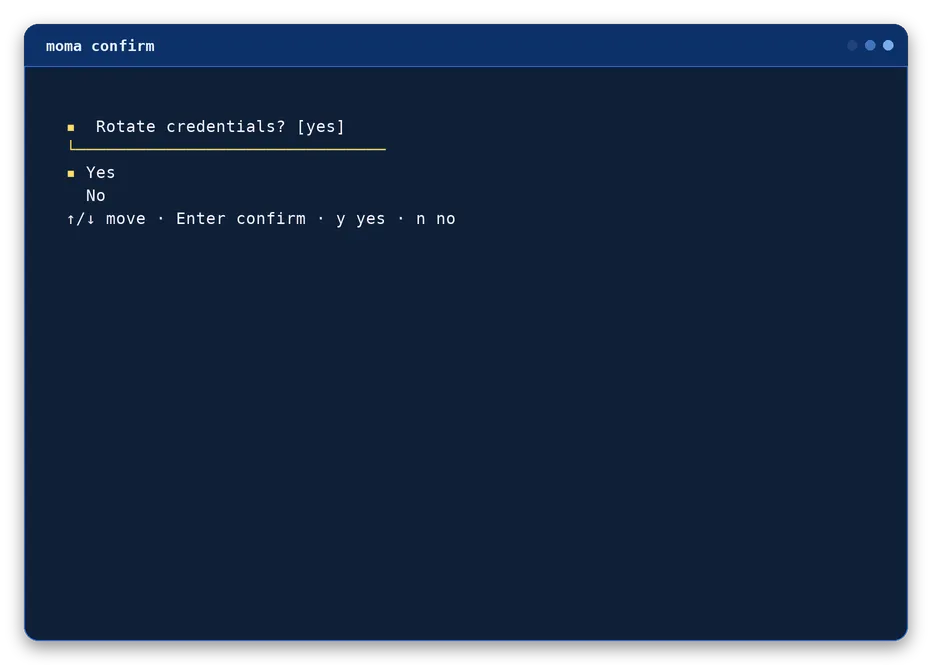
Select Yes or No with the arrow keys, Enter, or the y and n shortcuts. A successful answer leaves one blank line below the controls.
moma confirm "Create this project?" [--default yes|no] [--answer yes|no]
--default <yes|no>
Which answer starts highlighted, and is used automatically on an empty Enter. Defaults to "yes".
--answer <yes|no>
Supplies the final answer directly and returns immediately without prompting - for scripts and tests. Interactive mode is used if omitted.
Bash examples
moma confirm "Create this project?" --default yes
moma confirm "Delete the cache?" --answer no
if moma confirm "Deploy now?"; then
moma msg "Deploying" --info
fi
Output
Selection
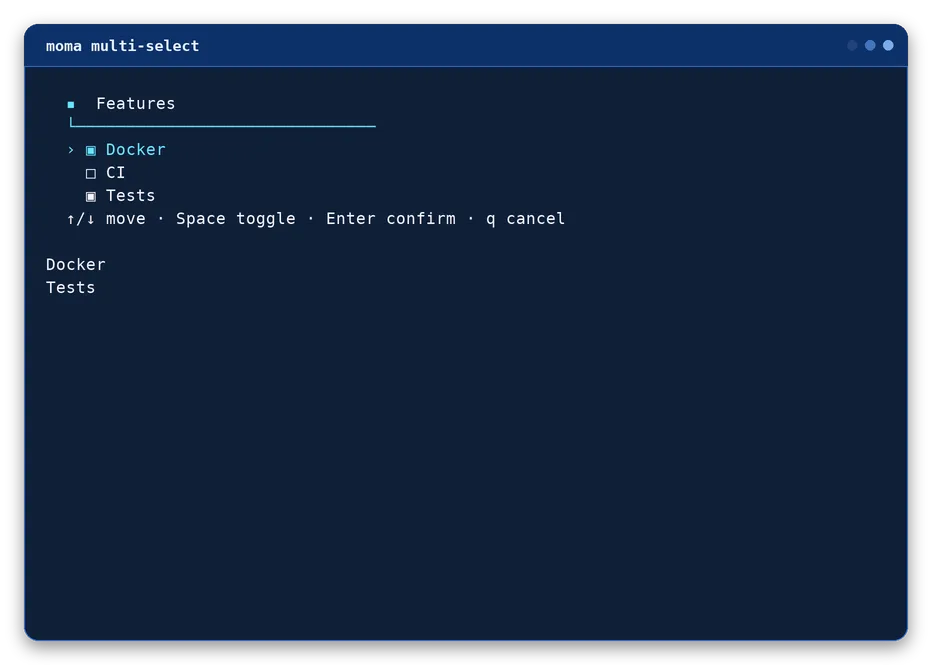
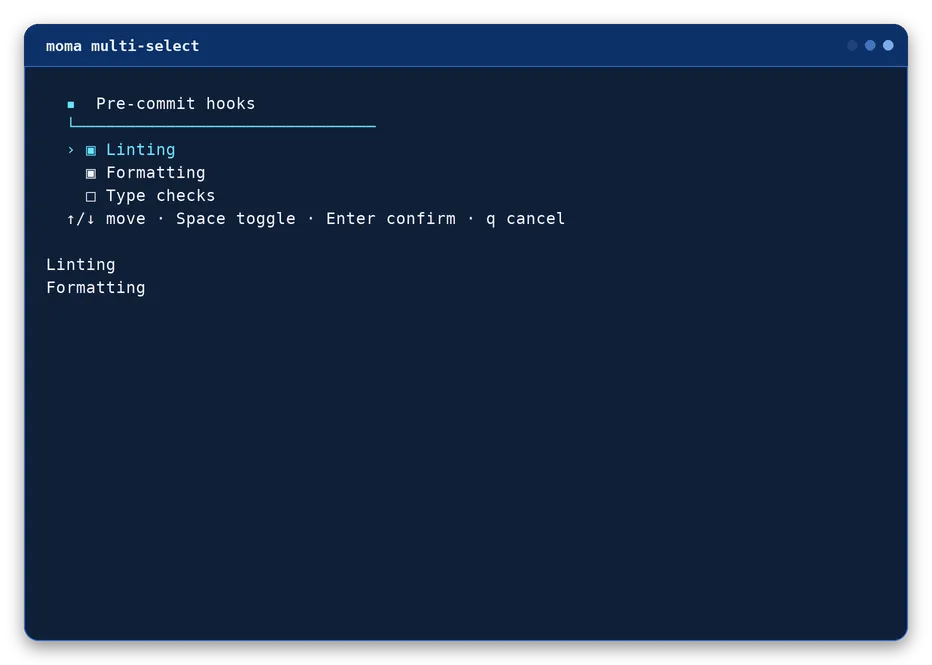
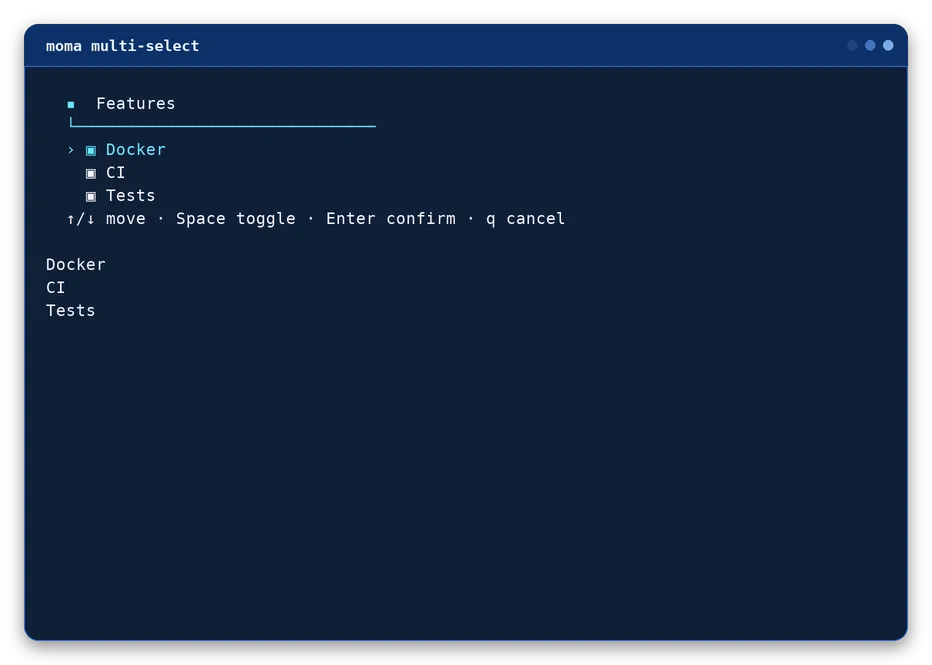
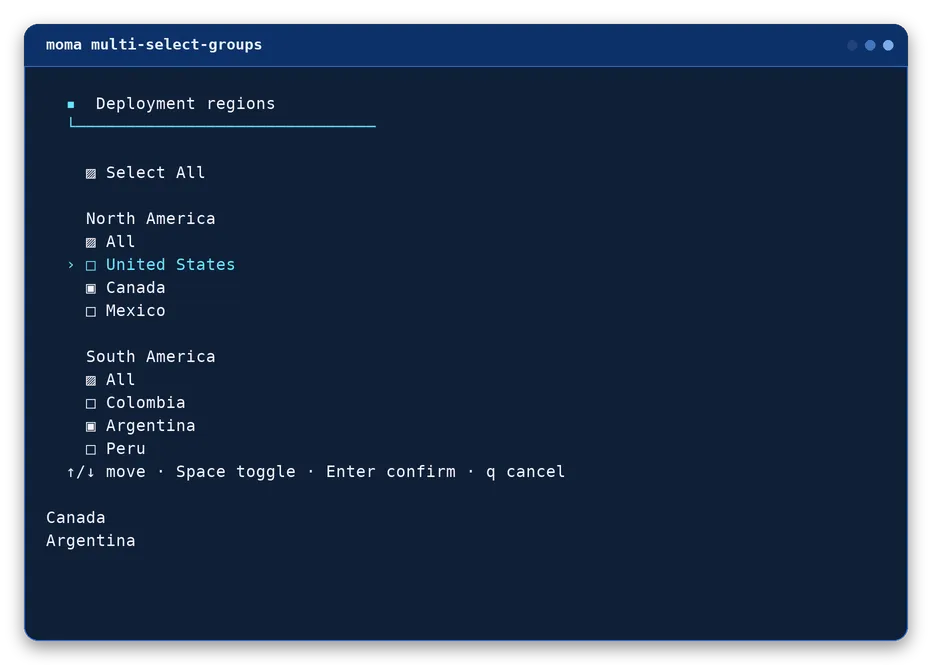
Choose one or several values from a list with the arrow keys.
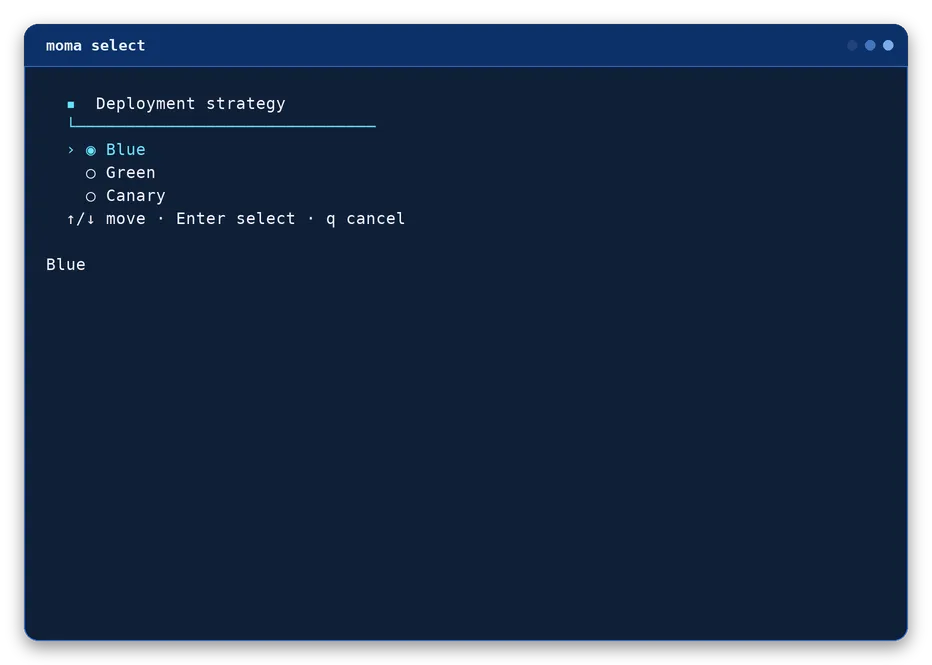
Select component
select
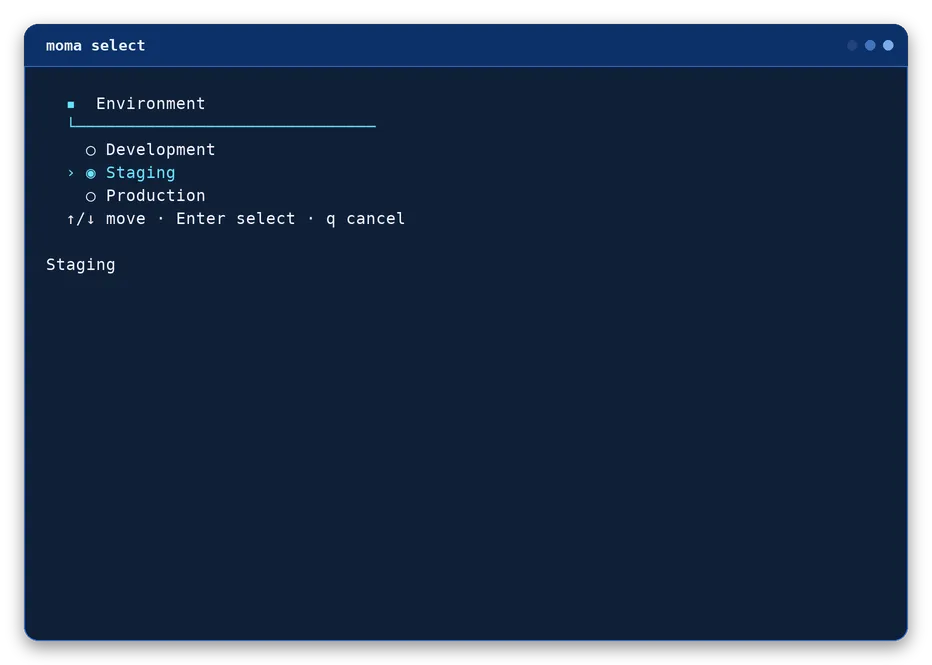
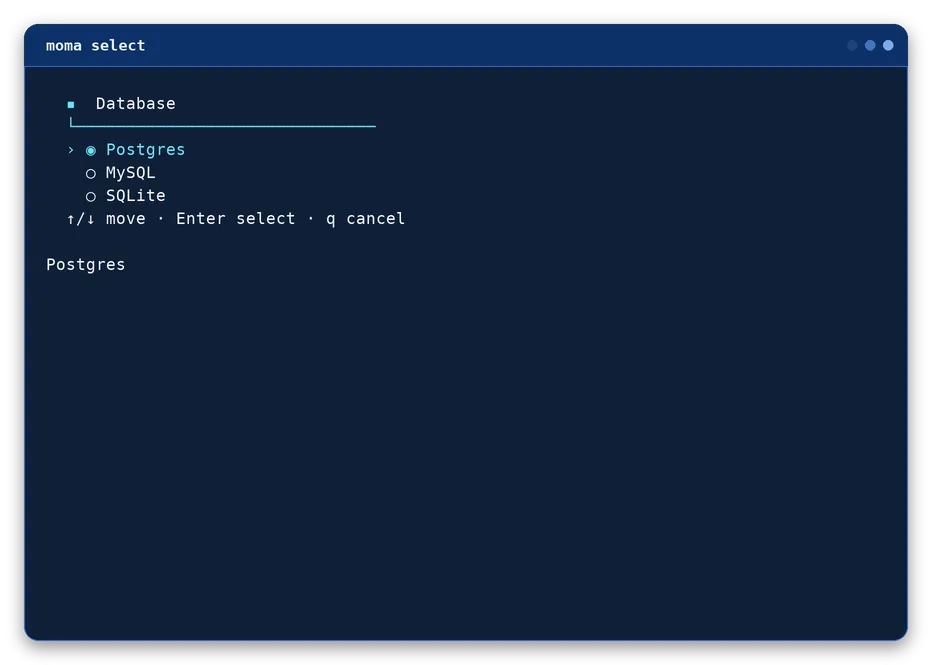
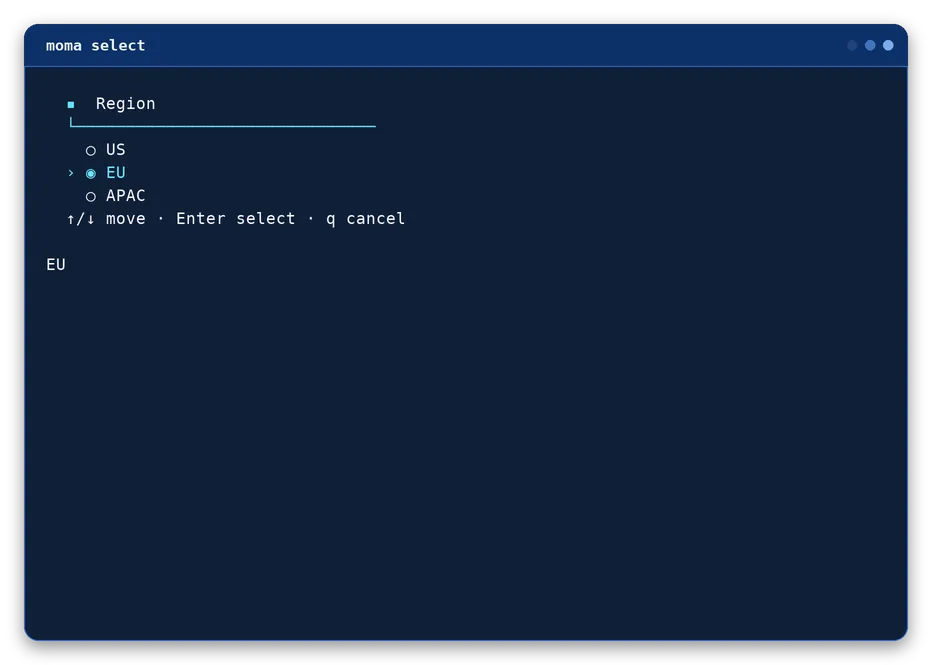
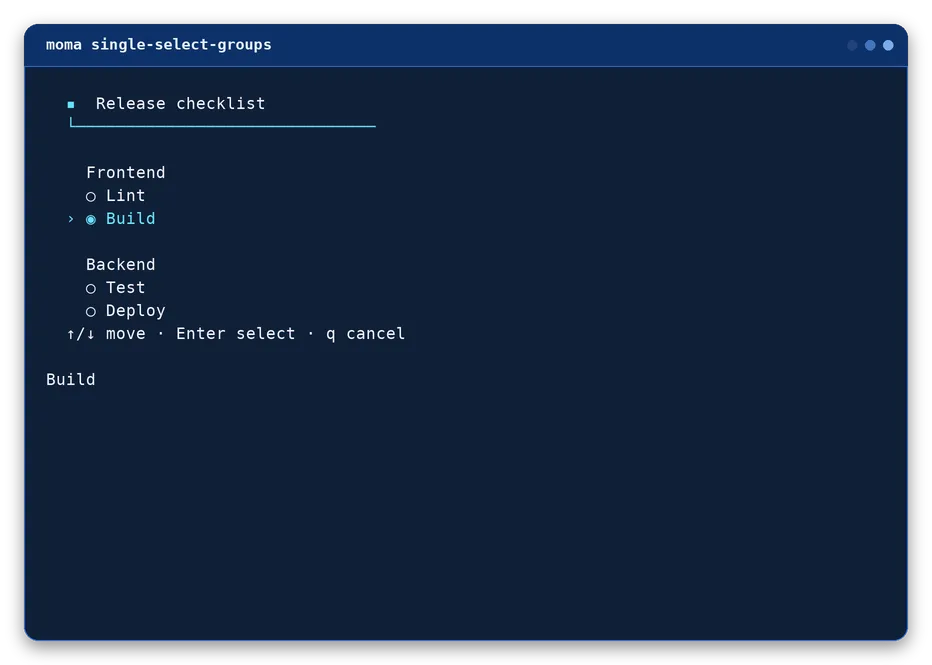
Select one value with the arrow keys, return it through standard output, and leave one blank line below the controls. Also available as moma single-select for existing scripts.
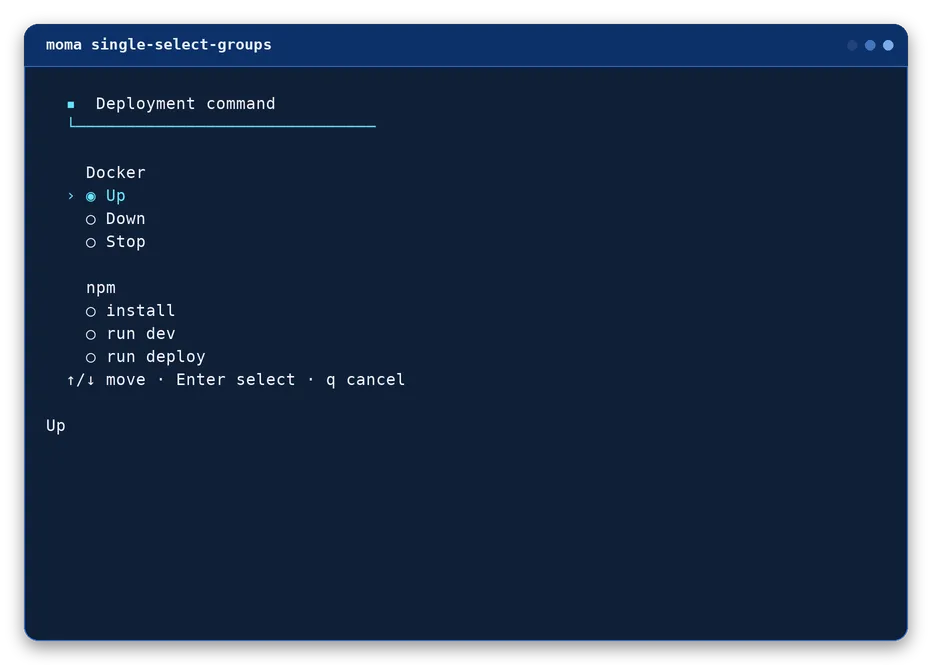
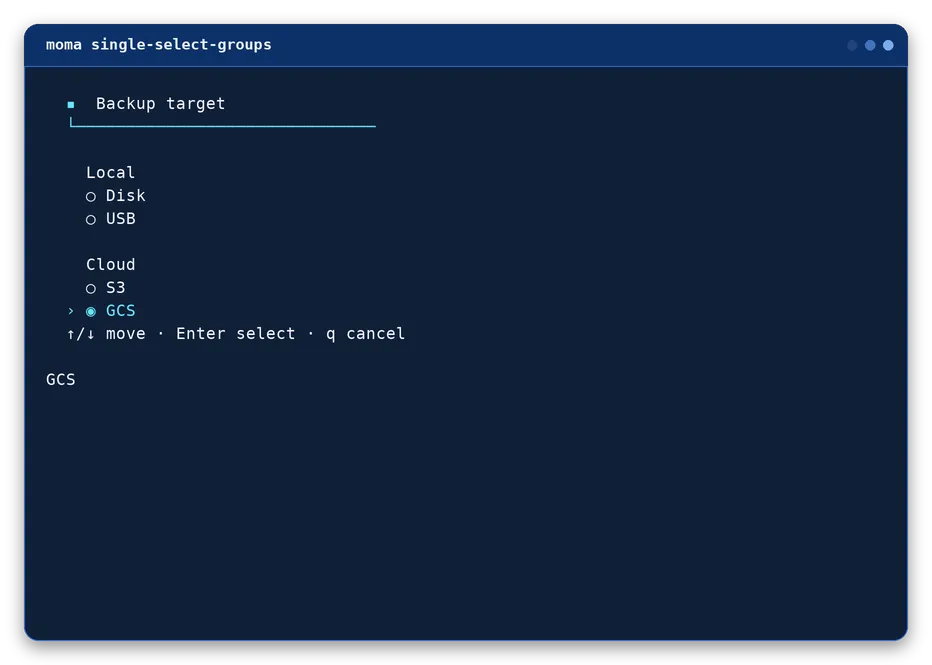
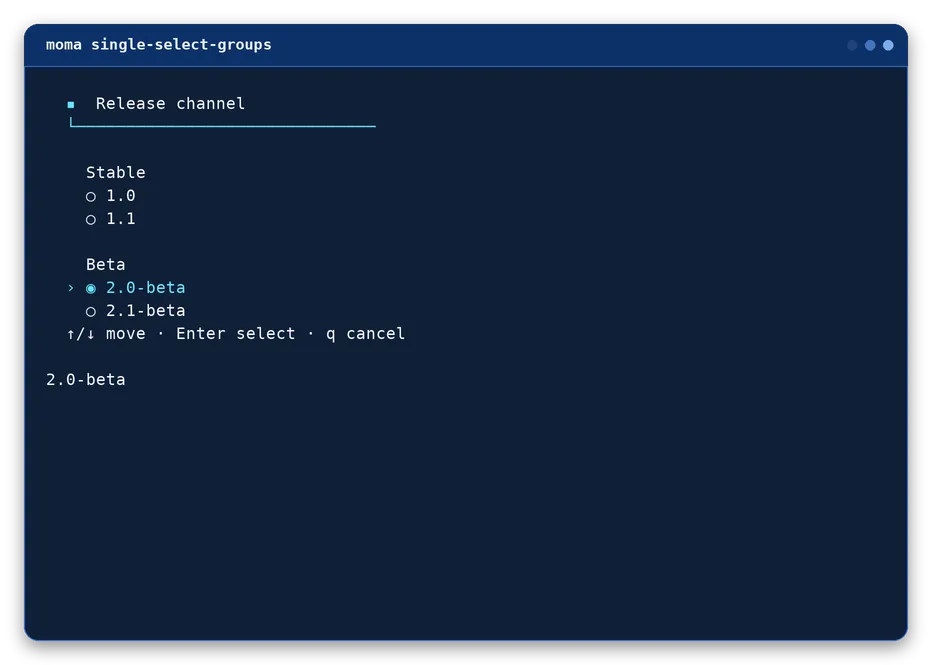
Select one value organized under named, non-selectable group headings. Option numbers are one-based, count only options, and follow visual order across every group.
moma single-select-groups --title text (--group name --option value...)... [--initial number] [--choose number]
--title <text>
Heading shown above the menu. Defaults to "Select an option".
--group <name>
Repeatable. Starts a new named, non-selectable group heading that following --option flags attach to. At least one is required.
--option <value>
Repeatable. Adds a selectable option under the most recently declared --group.
--initial <number>
One-based global option index (counting only options, not group headings) highlighted at start. Defaults to 1.
--choose <number>
One-based global option index to select immediately without interaction, for scripts and tests.
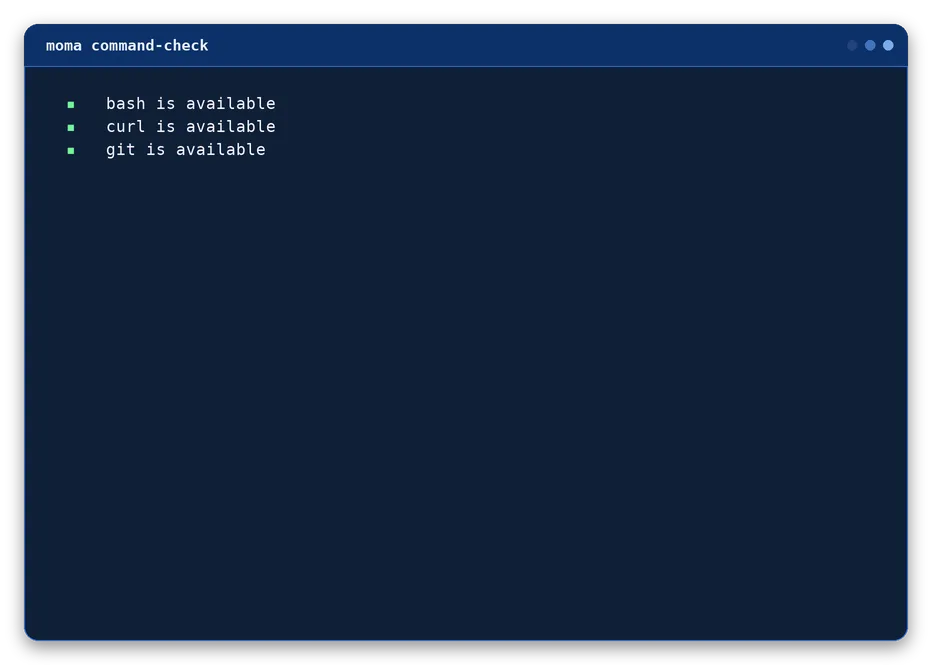
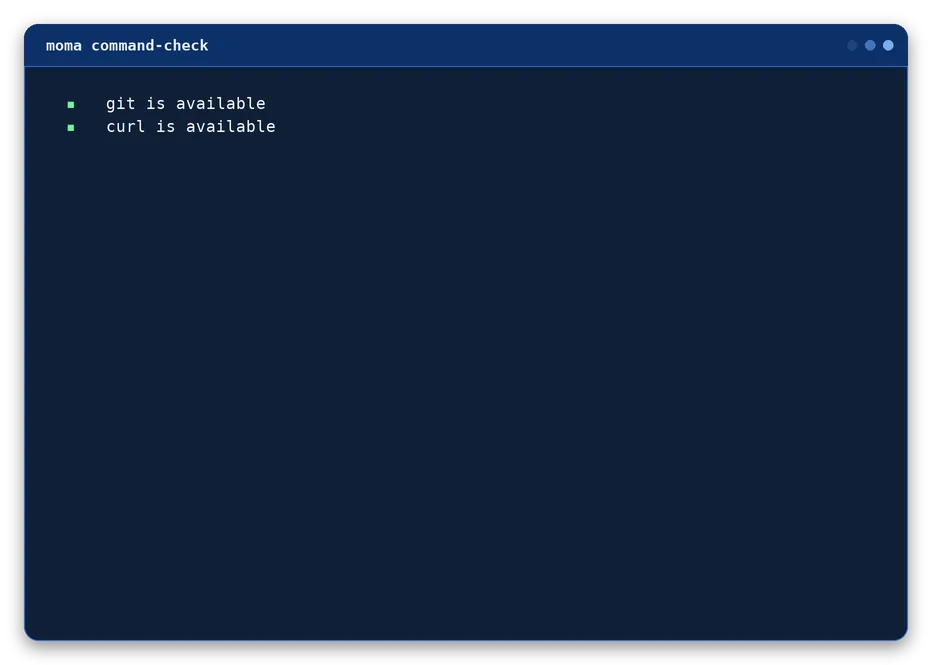
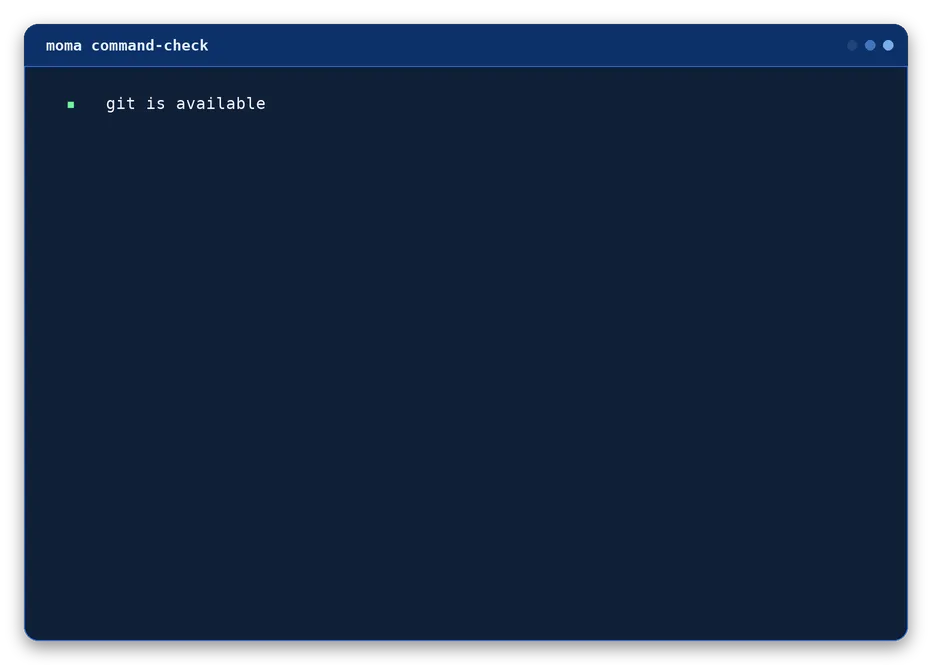
Check whether every requested executable is available and return a useful status.
moma command-check bash curl git [--quiet]
--quiet
Suppresses the per-command "available"/"missing" message lines. The return status still reflects availability.
Bash examples
moma command-check bash curl git
moma command-check docker --quiet
if ! moma command-check git; then
exit 1
fi
Output
Self
Commands moma runs about itself: checking its version, updating, and browsing its own documentation.
Release helper
update
Download, validate, and atomically replace an executable Moma installation.
moma update
Bash examples
moma update
Output
moma update
▪ moma: updated successfully
Release helper
version
Print the version embedded in the installed Moma executable.
moma version
Bash examples
moma version
Output
Documentation helper
preview
Show a categorized terminal, Markdown, or browser preview of every component, without leaving the CLI.
moma preview [md|web]
(no argument)
Renders the full terminal component gallery to the screen.
md
Renders the Markdown-form documentation instead of the terminal gallery.
web
Opens the browser-based documentation instead of the terminal gallery.
Bash examples
moma preview
moma preview md
moma preview web
Output
moma preview
────────────────────────────────────────────────────────────────
MOMA COMPONENT GALLERY
Visual reference for the public terminal UI API
────────────────────────────────────────────────────────────────
Legend ● success● error● warning● info
⋮
Documentation helper
help
Print full usage: every command, its description, and the global flags.
moma help
Bash examples
moma help
moma --help
moma -h
Output
moma help
  Moma - terminal UI components for Bash

  Usage:
    moma <command> [arguments] [options]
    source dist/moma

  Commands:
    header                 Print a Pagga ASCII heading.
    msg                     Print a styled message.
    select                  Select one value (alias for single-select).
    ⋮  every command and helper, one row each

  Example:
    moma msg "Ready" --success
Command interface
The standalone file exposes every library function as a command and keeps documentation previews in the same entrypoint.
Component commands
Call any visual component without sourcing the library.